Timecode sync
Chasing an external timecode means the show's clock lives somewhere else — a master generator, a playback server, a sound desk — and HotPunch follows it. This page covers how that chase is set up, the one thing that has to be armed before anything happens, what the playhead does when the signal goes away, and drop-frame in full.
What you need
- An external source: MTC on a MIDI port, or LTC on an audio input channel.
- For LTC, an audio interface whose input actually carries the LTC leg. Any channel of the device will do; you tell HotPunch which one.
- A timeline whose start TC matches the timecode you intend to chase. That value is not cosmetic — it is the anchor the whole chase is measured from. See Start TC.
No mixer and no licence tier are involved. You can set this up and prove it works entirely Offline.
Two sources, and there is no third
The Sync panel's source selector offers exactly Off, MTC and LTC. There is no "free run" or "internal chase" mode — Off is the internal clock, and it is the default.
Changing the source always drops the lock and hides the chase options. If you switch from LTC to MTC mid-setup, expect to arm again.
Point it at a device
LTC. Choose the audio input device, then the channel. The channel list is read from the device once it opens, so a sixteen-input interface offers sixteen channels, not a fixed pair. The device name and channel are remembered per machine, in the application's own preferences rather than in the project — the interface on your backup laptop is not the one in the truck. They are restored the next time you select LTC.
MTC. Choose the MIDI input port by name. This one is not remembered; reselect it each session.
Both selectors have a refresh button for devices that appear after HotPunch started.
Tip
A USB interface that is unplugged and plugged back in is picked up automatically within a couple of seconds, and — this is the part that matters — it is reopened on the same channel and sample rate, not on the defaults. A silent fallback to channel 1 is exactly how a lock never returns and nobody can say why.
Nothing is chased until you arm Lock
This is the single most misunderstood thing about the feature, so it gets its own heading.
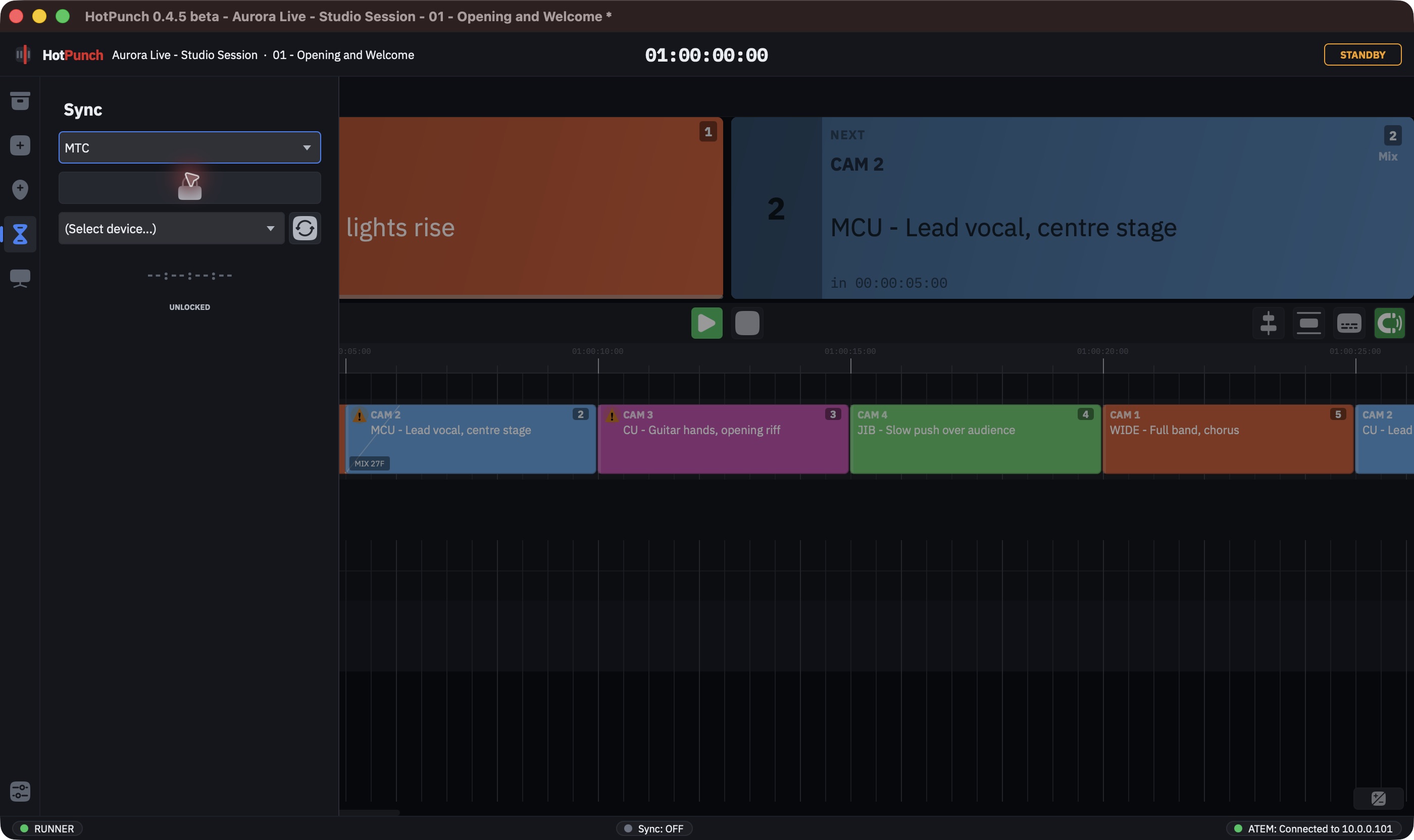
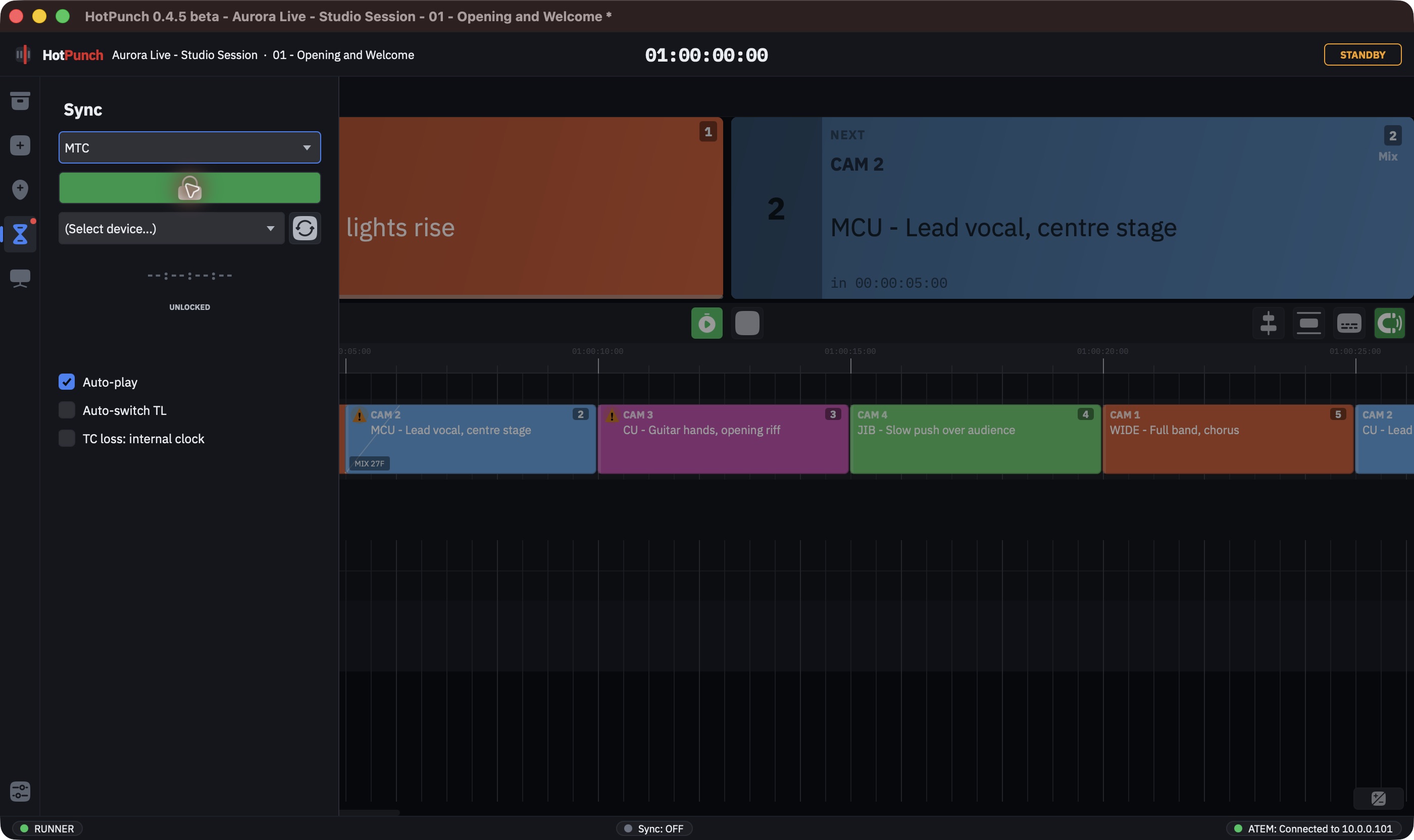
Selecting MTC or LTC reveals a padlock button in the Sync panel. Until you arm it:
- HotPunch decodes the incoming timecode and displays it, with its frame rate, and tells you whether it falls inside the active timeline's range;
- and the timeline keeps running on its own internal clock, completely indifferent to it.
Selecting a source is monitoring. Arming the padlock is chasing. Nothing detects a signal and helpfully takes over.
You can arm it three other ways: Cmd+Opt+L, the MIDI LOCK TC command, or the OSC
/hotpunch/sync message — see Remote control. All four do the same
thing, and all four do nothing at all when the source is Off, because the button is not
there to be pressed.
Note
The padlock is an icon-only control with no visible label. Its tooltip ("Lock playhead to incoming timecode") is the only text there is. Three further toggles — Auto-play, Auto-switch TL, and the TC-loss behaviour — appear only after you arm it, which is why they seem to be missing when you go looking for them.
What locking actually does
Once armed, HotPunch waits for eight consecutive good frames before declaring a lock —
about a third of a second at 25 fps. It reads LOCKING... until then, LOCKED after.
Continuity is not checked; the smoothing engine deals with jitter.
On the lock edge, the playhead is anchored and — if auto-play allows it — playback starts. From then on:
- Playhead position is incoming TC minus the timeline's start TC. There is no offset field anywhere in the app; the start TC is the offset. If the chase lands two seconds early, the timeline's start TC is two seconds wrong.
- A lock does not require the timecode to be inside the timeline. Nothing checks. A TC
before the timeline's start clamps the playhead to zero and sits there; a TC past its end
drives the position beyond the duration. The
IN RANGE/OUT OF RANGEreadout is telling you something real — read it before you conclude the chase is broken. - A lock never switches timeline on its own. That is Auto-switch, below, and it is off by default.
- Lock is dropped after 500 ms with no frames.
The chase itself runs about thirty times a second and is deliberately lazy about small errors: drift under roughly two frames is ignored, moderate drift is pulled in a few percent per tick, and only a discrepancy over half a second causes a hard resync. The result is a playhead that does not twitch on a noisy LTC leg but still lands immediately when the source jumps.
Warning
Any position move of a quarter of a second or more is treated as a jump, not as playback. HotPunch does not fire every cue it crosses on the way: it re-asserts the cue you land on, on both buses. Without that, scrubbing the master would machine-gun the mixer with cuts. It also means a jump lands you on the right source without replaying the transitions that would have got you there.
Auto-play — on by default
Playback starts when the lock is achieved, not when you request it. Arming the padlock with no signal present leaves the playhead where it is; that is intentional, because the older behaviour (start immediately, freeze until timecode arrives) looked like a hang.
If you pause by hand while locked, HotPunch remembers, and a subsequent re-lock will not restart playback. The memory is cleared when sync is lost, when you press play, or when you re-arm the padlock.
Warning
With auto-play off and the timeline stopped, locking moves nothing. The panel reads
LOCKED, the incoming timecode ticks over, and the playhead does not budge until
someone presses play. This is the most convincing way to conclude the feature is broken
when it is working exactly as configured.
Auto-switch — off by default, and opt-in
When it is on and the lock is holding, every incoming frame whose timecode falls outside
the active timeline's window makes HotPunch look through the current show for the
timeline whose [start TC, start TC + duration) window contains it, and switch to it. With
auto-play also on, it positions and plays that timeline as well.
Two consequences:
- The search space is the show, not the project. A timeline that lives in the pool but is not in the current show is never selected. See The pool and the shows.
- Timeline TC ranges inside a show must not overlap, or the choice is arbitrary. HotPunch already refuses some of the edits that would create an overlap; this is why.
Note
Auto-play and Auto-switch are session settings. They reset every time you launch the app — auto-play on, auto-switch off — regardless of what the project file says. If your running order depends on auto-switch, arming it is part of your pre-show routine, not something the project remembers for you. The third toggle, TC-loss behaviour, is saved in the project.
When the timecode goes away
The toggle is labelled "TC loss: internal clock" and it decides what the playhead does when the signal stops. It is saved in the project, and it defaults to off.
| Toggle | What happens on TC loss | What you see |
|---|---|---|
| Off (default) | The playhead freezes where it is. Nothing advances, no further cues fire. It resumes when timecode comes back. | Toast: TC SYNC LOST - playhead FROZEN (waiting for TC) |
| On | The show keeps running on HotPunch's internal clock from where it was. | Toast: TC SYNC LOST - running on INTERNAL clock |
With the fallback on, re-acquiring the signal hands control back to the external source and
says so (TC re-locked - chasing external timecode); the playhead snaps to wherever the
timecode now is, which may be forwards or backwards.
This is a decision to make before the show, not during it. Freezing is right when the timecode is the show's spine and being wrong is worse than being stopped — a scripted broadcast against a playback server. The internal fallback is right when the show has to keep moving whatever happens, and a few frames of drift is cheaper than a dead playhead.
Warning
The only warning is a toast. Nothing blocks, nothing goes modal, and the operational state does not change: an unattended machine can sit frozen for a long time. If you choose the frozen behaviour, someone has to be watching the playhead.
Reading the panel
The Sync panel shows, from the top: the state (UNLOCKED / LOCKING... / LOCKED), the
incoming timecode, its frame rate, and whether that timecode falls inside the active
timeline (IN RANGE / OUT OF RANGE). Until the first frame arrives, only the state and a
--:--:--:-- placeholder are shown; the frame rate and the range line fill in with the
first frame received. The frame rate reads 29.97 DF fps when the source declares
drop-frame — that label is your first check that the two ends agree.
Two readings that mislead if taken at face value:
- The timecode display is live before you arm the padlock. Seeing digits move is not evidence that the timeline is chasing anything.
OUT OF RANGEis also what you get when there is no active timeline at all.
Elsewhere: the status bar carries a sync segment — Sync: LTC LOCKED / Sync: MTC LOCKED
when locked, Sync: LTC / Sync: MTC while locking or after the lock is lost. It follows
the lock state, not the padlock: arming with no signal coming in leaves it at Sync: OFF
until the first frames arrive. The transport's play/pause icon changes to its synced
variant while the padlock is armed.
Drop-frame
Drop-frame lives here, in full, because every question about it is really a question about whether your timecode and someone else's agree.
What it is, and what it is not
At 29.97 and 59.94 the frame rate is not a whole number, so a timecode label counted in whole frames slowly falls behind the wall clock — about 3.6 seconds per hour. Drop-frame fixes the label by skipping frame numbers: two frame numbers (four at 59.94) at the start of every minute except every tenth. Nothing is dropped from the video, and nothing runs faster or slower. Only the digits change.
The separator before the frames becomes a semicolon: 01:00:00;02. That is the visible
marker, and it carries meaning — HotPunch treats a ; in typed or imported text as a
declaration that the timecode is drop-frame.
Drop-frame exists only at 29.97 and 59.94. At every other rate the toggle is disabled and forced off, because the concept does not apply.
Tip
Some digit combinations do not exist in drop-frame — 00:01:00;00 is a skipped number.
Type one and HotPunch snaps forward to the first valid frame (;02), which is the
convention every NLE uses. It does not quietly round backwards into the previous second.
Who decides the designation
The same three-level chain that governs the frame rate governs drop-frame, and the highest level present wins:
- a runtime designation adopted from the incoming timecode (see below);
- the project-wide setting, when Use project frame rate for all timelines is on — the default;
- the timeline's own setting.
So on a normal project the DF toggle in the timeline dialog is greyed out and reads "Drop-frame is controlled by Project Settings". The control that works is in Settings > Project. The frame-rate half of the same chain is described in Frame rate, and who owns it.
Changing the designation preserves the digits
This is the behaviour most likely to be reported as a bug, so it is worth understanding before it surprises you.
The digits you see are the truth. When you flip DF on or off, HotPunch re-reads the
timecode you typed under the new designation rather than converting it. A start TC of
01:00:00:00 stays 01:00:00;00; what changes underneath is how many seconds that label
represents. Flip it back and you get your original digits back.
The same relabelling runs across every timeline when you change the project-wide designation — provided the frame rate itself is unchanged in that same Apply.
Warning
If you change the frame rate and the drop-frame designation in the same Apply, the policy inverts: the underlying seconds are kept and the labels are reinterpreted. This is deliberate — preserving digits across a rate change would preserve digits the operator never saw at the new rate, and a 25 → 29.97 DF → 25 round trip would corrupt the start TC by several seconds. If you want a clean designation flip, change only the designation.
Getting it wrong is quiet
Nothing fails loudly when the two ends of the chain disagree about drop-frame. The show
simply sits about 3.6 seconds per hour away from where everyone else thinks it is, which
is invisible in a rehearsal and expensive in a two-hour broadcast. Match the designation of
the source you are chasing, and confirm it against the 29.97 DF reading in the Sync panel.
Adoption from the incoming timecode
At the moment of lock, if the incoming timecode declares a different designation from the project's, and the effective rate is 29.97 or 59.94, HotPunch reacts according to who owns the frame rate:
| Frame-rate governance | What happens | Toast |
|---|---|---|
| Mixer ("follow mixer frame rate") | The incoming designation is adopted as a runtime override across all timelines. Labels change; positions do not. | External TC is DROP-FRAME - timecode labels updated |
| Project | Nothing is changed; you are told about the mismatch and left to decide. | External TC is DROP-FRAME but project timecode is NDF - keeping project setting |
The runtime override is temporary: it is cleared when you set the sync source back to Off. It is never written into the project.
Where the separator matters elsewhere
- Exported PDFs and EDLs carry the timeline's designation, and an EDL of a drop-frame
timeline declares
FCM: DROP FRAME. - CSV round trips rely on it. An exported drop-frame CSV writes
;, and the importer reads that;as the declaration that those digits are drop-frame. Import a drop-frame CSV as if it were non-drop and every cue lands in slightly the wrong place, with no error. See Importing a rundown from CSV.
LTC Scan is not this feature
Warning
Scan for LTC... on an audio track and LTC in the Sync panel share three letters and nothing else.
- LTC Scan is an offline alignment tool. It reads the timecode baked into a file and offers to move either the file or the timeline so the two agree. You use it once, while building. It is documented in Aligning a track by its embedded LTC.
- LTC sync is what this page is about: a live signal on an audio input, chased in real time while the show runs.
You can use both on the same show, and they do not interact.
If the playhead is not doing what you expect, Troubleshooting is indexed by symptom.