Moving a project between machines
A .punch file is small. That is the point, and it is also the trap: it is small because it
does not contain your media. Copying it to the backup laptop, emailing it to a colleague or
restoring it from yesterday's card gives you the show — every cue, every marker, every
setting — and none of the sound.
This page is about what travels, what does not, and the two tools that close the gap.
What you need
- Nothing special to read this. It applies to every project.
- To rebuild audio from video on a new machine, that machine needs the source video files and a working ffmpeg — which ships inside the application, so in practice it just works.
What is actually in a .punch
It is a ZIP archive with two things inside:
project.json— the entire show: timelines, cues, markers, notes, status blocks, shows, and every per-project setting.waveforms/— one small peak file per media track, so timelines redraw instantly instead of re-analysing.
That is the whole list. No audio, no video, no extracted soundtracks. Media is referenced by path, not carried.
This changed, and old files still open
Projects saved before mid-2026 embedded the audio extracted from video tracks, which made them enormous. Those files still open: HotPunch lifts the embedded audio out into the local media cache on the way in, so nothing is lost and nothing has to be re-extracted. The next save writes the new, lean format. There is no way back, and you do not want one.
The two questions to ask before you copy
1. Will the media be found?
Media is stored as an absolute path. Open the project on a machine where the files sit somewhere else — a different user account, a different drive letter, a card mounted under a different name — and every track comes up offline.
An offline track is not lost. Its position, trim, gain, mute and channel mode are all
preserved; only the media is gone. On the timeline it is washed red with a break icon, its
tooltip reads Offline - <filename>, and it draws no waveform and produces no sound.
HotPunch tells you on open, with a Missing Media Files window listing each missing file and how many tracks use it. Three ways forward:
- Search Folder... — point it at a drive or a folder and it hashes everything it finds, matching by content, not by name. This is the one you want: it reconnects files that were renamed, and refuses files that merely share a name. It recurses, so give it the whole media volume and let it run.
- Locate — pick one file by hand. If its content does not match what the project expects, you get a File content differs — use anyway? prompt. That prompt exists for a reason; answering yes on show day is how a project ends up cut against the wrong take.
- Continue Offline — carry on. Perfectly reasonable if you are only editing cue timings and do not need to hear anything.
Relinking is retroactive across the whole project: reconnect a file once and every timeline that used it comes back, trims intact. You can reopen the window at any time from File > Relink Media....
2. Will the audio have to be rebuilt?
Audio that HotPunch extracted from a video file does not live in the project. It lives in a media cache on the machine that did the extraction.
So the first time a project is opened on a new machine, every video track has its audio extracted again — you will see Extracting audio (first time) in the loading dialog. It can take a while on a long show, it happens in the background, and while it is running GO LIVE refuses to arm. See If GO LIVE will not arm.
Plan the first open
On the backup machine, open the project before the crew arrives, not at the half. The extraction is one-off per machine, but only if you let it finish — and only if the source video is actually reachable, because an offline video extracts nothing at all and fails silently as far as the timeline is concerned.
The media cache
| Scope | Per machine, per user, shared by all projects on that machine |
| Contains | Audio extracted from video files. Nothing else |
| Keyed by | The content of the source file, not its path |
| Default size limit | 10 GB, oldest-used deleted first |
| Where | Settings > Project, under Autosave |
Keying by content is what makes it useful across projects: three shows that reference the same rehearsal video extract it once. It also means moving a file on the same machine does not cost you the extraction — HotPunch recognises it and updates the record.
The Settings > Project tab shows Media cache: X GB / Y GB, a Cache size limit (GB) field and a Clear cache button. The limit field applies the moment you leave it — it does not wait for Apply — and applying it prunes immediately.
Clear cache deletes every cached extraction. It does not affect the project you have open: that audio is already in memory and keeps playing. The cost is paid the next time you open a project that needs it.
The limit is not remembered
The cache size limit resets to 10 GB every time the application starts. Raising it holds for the session only. If you work with a lot of video and rely on the cache staying warm, check the field after each launch, or expect the cache to be pruned back to 10 GB the next time something is extracted.
Collect Media: making a project that travels
File > Collect Media Files... builds a self-contained copy.
Choose a destination and HotPunch creates <ProjectName>_media/ there, copies every online
audio and video source into it — deduplicated, so a file used by five tracks is copied once —
and writes a copy of the project alongside it whose media paths are relative to the bundle.
Move that folder anywhere and it resolves.
The copy runs in the background with a progress dialog. Your open project is untouched: its file association, its paths and its unsaved-changes state are all restored afterwards. At the end you get a count and a total size.
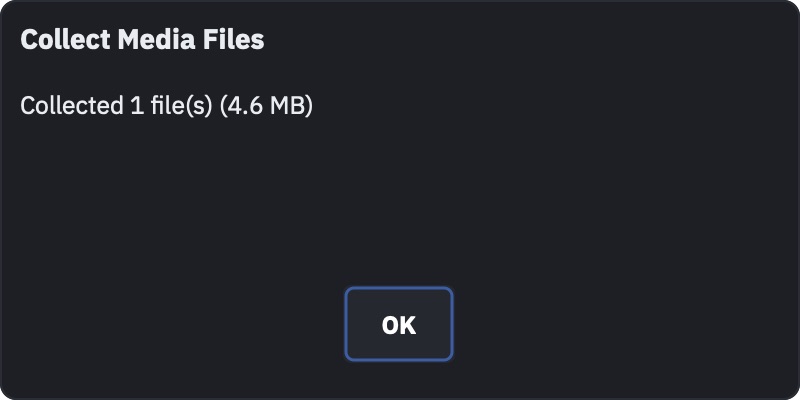
Offline tracks are skipped, and the count tells you
Collect Media copies what it can find. Anything already offline is silently left behind and reported as "N file(s) skipped (offline)" in the summary. Relink first, collect second — otherwise you produce a bundle that looks complete and is not.
What Collect Media does not take
- The PDF cue-sheet logo. Its path is absolute and nothing rewrites it. The cover page loses the logo on the other machine. See Cue sheets.
- Anything to do with ISO recording. Take folders and clip files are absolute paths, and
the generated proxies live in a hidden
.iso_proxiesfolder next to the project, not inside it. A collected bundle cannot be reviewed. See ISO recording. - The media cache, which is per-machine by design.
Settings that travel, and settings that do not
Almost everything is in the project file, which is usually what you want and occasionally exactly what you do not.
Travels inside the .punch: the mixer protocol with its host and port, camera count
and labels, tally and cloud settings, OSC and MIDI bindings, output display layout, autosave
interval, drop-frame designation, and the redundancy configuration.
Stays on the machine: the licence activation, the LTC input device and channel — the backup laptop's audio interface is not the truck's — the recent-projects list, import folder defaults and window positions.
Opening a project by hand on the backup rewrites its redundancy role
Redundancy settings live in the project, including the role. Push the project from the primary using Push Project to Backup and the backup keeps its own redundancy configuration — that path is built to protect it.
Copy the same .punch across on a stick and open it with File > Open, and the backup
adopts the primary's settings: it comes up believing it is the Primary, pointed at
its own former peer. You now have two primaries and no backup. Always push; never
hand-carry a project onto a configured backup.
Two smaller ones in the same family:
- The mixer address travels. Right for a redundant pair on one network, wrong the moment you take last month's project to a different venue and it tries to connect to a switcher that is not there. Check the Mixer tab after any move.
- Autosave travels, and it overwrites the project file itself — there is no separate autosave copy. A project arriving with a one-minute autosave interval starts rewriting itself a minute after you touch anything. If the file you were handed is the only copy of something, duplicate it before you open it.
If the arriving project names a mixer protocol this build does not have, HotPunch falls back to ATEM and tells you: "Project's mixer protocol is unavailable - switched to ATEM. Re-configure in Settings." Nothing is lost, but the mixer settings need redoing.
Licences do not travel
An activation is bound to the machine that made it. A copied application, or copied preferences, does not carry it. A machine in Demo can open and edit a project but cannot save it — which makes an unlicensed backup a machine that can watch the show and not record a single change to it. Activation is covered in Install and activate.
A checklist for the backup laptop
- Activate the licence on that machine, and confirm it can save.
- Get the media onto it, ideally at the same paths as the primary. Relink anything offline.
- Open the project and let the audio extraction finish. Watch for the loading status to clear.
- Check Settings > Mixer: right protocol, right address.
- If it is a redundancy backup, set its role there and then push the project from the primary rather than copying it — see Redundancy.