Settings
This page is not a list of the settings. Every control in HotPunch carries a tooltip, and a tooltip is the right place to learn what a field does.
What a tooltip cannot tell you is what a setting costs you later — which is what is collected here: the choices with non-obvious consequences, the constraints on when you are allowed to change anything, and the two or three places where the window behaves differently from every other dialog in the application.
Open it with the gear at the bottom of the left icon rail, with Cmd+,, or from
Window > Settings.
Apply, OK, and the X
The Settings window has two buttons, and neither of them is Cancel.
| Button | What it does |
|---|---|
| Apply | Applies every page, and leaves the window open |
| OK | Applies every page, and closes the window |
| The window's X | Closes without applying |
Two consequences follow, and both catch people out:
- Apply and OK apply all pages, not the one you are looking at. A half-finished change on the Mixer page is committed when you press OK on the Log page.
- There is no undo, and no Cancel. Once applied, the way back is to type the old value and apply again. The X is the closest thing to a cancel, and only for changes you have not applied yet.
Enter does not confirm, deliberately
Pressing Enter anywhere in the Settings window does nothing. The window explicitly
refuses to intercept it so that text fields keep normal behaviour — a numeric port field
and a multi-line field would otherwise disagree about what the key means. Apply and OK
are clicks. See Keyboard shortcuts.
A handful of fields commit on their own, without waiting for Apply: the media cache limit
commits on Enter or when you click away, and Clear cache acts immediately.
You cannot open Settings on air
Cmd+,, the gear and the menu item all produce the same alert in Live and in Break:
Settings Blocked — Cannot open settings while in Live mode. Please end Live mode first (click END LIVE).
And a window that was already open does not survive the transition. At GO LIVE, HotPunch closes it for you and says so:
Settings closed - locked while Live
This is not tidiness. An Apply on air re-applies the mixer configuration, which drops and re-opens the connection — and a dropped connection in Live forces a Break. Closing the window removes the gesture rather than trusting nobody makes it.
The log is behind this gate too
The log lives on a Settings page, so Cmd+Shift+L is refused on air with the same alert.
If you want a record of a show, turn Save logs to file on before you go live — not
when something has already gone wrong. See Rehearse.
Plan for this. Everything you might want to change during a show has to be set beforehand, and the pre-show checklist at the end of Rehearse is ordered on exactly that basis.
Apply is refused during a failover
One more refusal, on a backup machine that has taken over:
Redundancy Settings Not Applied — Failover is ACTIVE - this machine is driving the mixer. Redundancy settings were left untouched. Use Return Control to Primary to hand control back, or end the show: the machine re-arms itself when it leaves Live.
Applying would restart the redundancy manager, which would clear the failover latch and put the backup back into dry run — orphaning the mixer in the middle of a show. The two ways out are the ones the message names, and both are in Redundancy. Note that only the redundancy part is skipped: the other pages of that same Apply have already been written.
A second, unrelated refusal lives on the Mixer page: an invalid dual M/E configuration is rejected with Invalid M/E Configuration, while the rest of the page applies anyway. See Dual M/E.
Frame rate governance
This is the setting that generates the most "the field is greyed out" reports, and the greyed-out field is almost never where the answer is.
Three levels can decide the frame rate. The highest level present wins, and every level below it becomes read-only:
| Level | Where | Active when |
|---|---|---|
| 1. Mixer | reported by the connected engine | Follow mixer frame rate is on and an engine is connected and reporting |
| 2. Project | Settings > Project | Use project frame rate for all timelines is on — the default |
| 3. Timeline | the timeline's own dialog | only when both toggles above are off or inactive |
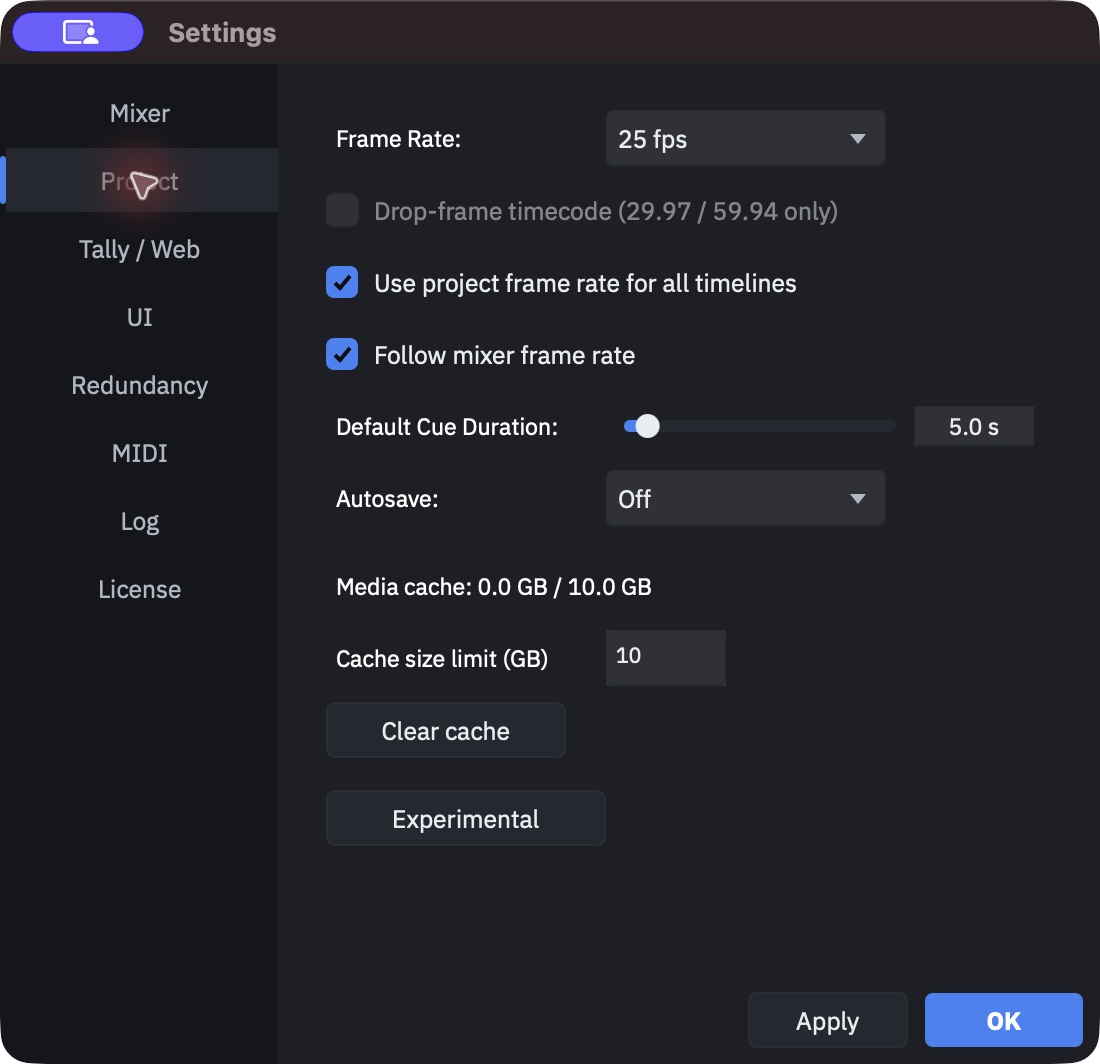
So the two toggles on the Project page are not preferences, they are a choice about who owns the rate:
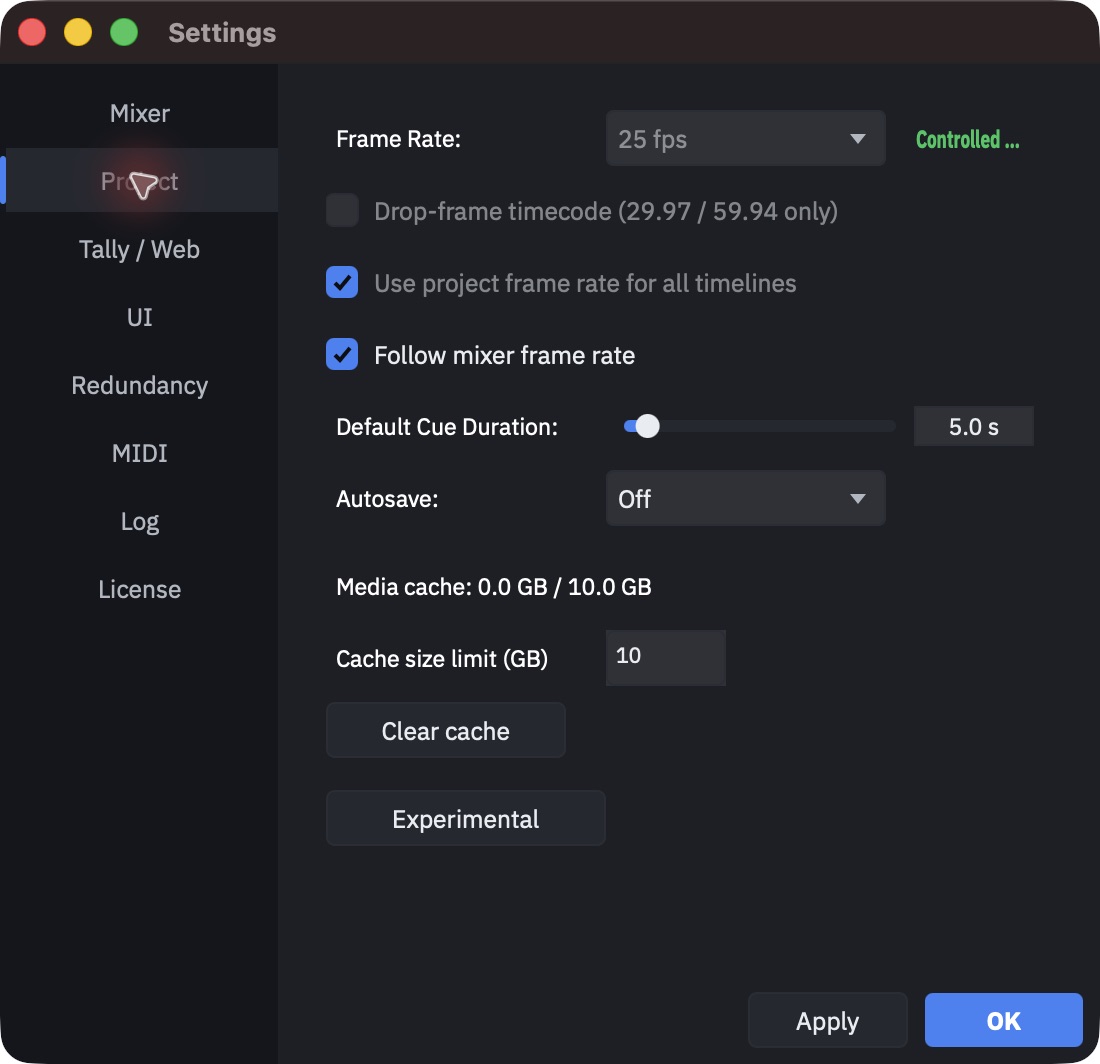
- Follow mixer frame rate (on by default) hands ownership to the switcher. While it is
governing, the frame-rate combo and the Use project frame rate for all timelines toggle are both disabled
and the combo shows the mixer's rate. A green line beside it reads
Controlled by <engine> (29.97 fps)— at the default window width it is cut short toControlled ...; widen the Settings window to read the engine and the rate. - Turn it off and ownership comes back to the project. If the mixer is still reporting a
different rate, that line turns amber and becomes a standing warning —
<engine> reports 29.97 fps - project at 25 fps— rather than an error. Nothing is corrected for you. The timeline runs at the project rate and the two ends of the cable disagree. - Use project frame rate for all timelines (on by default) makes one rate apply to every timeline. Turn it off only if you genuinely need timelines at different rates in one project; almost nobody does, and the cost is that each timeline can then be wrong on its own.
Which control to actually use, and what the greyed field says, is in Frame rate, and who owns it.
Drop-frame follows the same chain, with one extra level above it — a designation adopted at runtime from incoming timecode. It is only meaningful at 29.97 and 59.94; at any other rate the toggle is disabled and forced off. Everything about it — what it changes, what it does not, and what getting it wrong costs — is in Drop-frame.
Where the rest of it lives
Most of what people go looking for in Settings has a page of its own, because the setting is the small part and the consequence is the large one.
| Looking for | It is here |
|---|---|
| Protocol, mixer address, M/E, camera count, input mapping | Connect a mixer |
| Dual M/E and the M/E 2 bus | Dual M/E |
| Auto ISO Recording | ISO recording |
| HTTP and WebSocket servers, ports, cloud relay | Web tally |
| OSC remote control and its port; MIDI bindings | Remote control |
| Heartbeat port, and the two ports either side of it; Peer Tally Port | Three ports |
| Media cache size and Clear cache | The media cache |
| Auto-breakaway | Running the show |
| Licence key, activation, plan | Licensing |
And the things that are not in Settings at all, which is where most of the searching happens:
| Looking for | It is not in Settings |
|---|---|
| Output display layout and cell widgets | The Monitors flyout, not a Settings page — see Running the show |
| Project name, production, director, assistant director, PDF logo | The Project Info button in the Show Manager toolbar, and the dialog shown when you create a project |
| Show name, venue, city, date, time, revision | File > Show Info... |
| Snap, M/E status track visibility, notes visibility | Icon-only buttons in the transport bar |
| Cue default duration for this cue | The cue itself; the Settings value is only the default for new ones |
Two similarly-named dialogs, two different targets
File > Show Info... edits the show: name, venue, city, date, time, revision. The Project Info button inside the Show Manager edits the project: project name, production, director. They look similar and they write to different places — and the PDF cover reads from both. Which field lands where on a cue sheet is spelled out in Cue sheets.
Where a setting is stored, and what that means when you copy a project
Not everything in this window travels with the .punch file, and the split is not obvious
from looking at it.
| Stored in | Examples | Consequence |
|---|---|---|
| The project | Mixer protocol and address, dual M/E, tally ports, OSC, MIDI bindings, redundancy — including the machine's role | Travels. Opening a project by hand on a backup machine overwrites its role |
| The machine | Timecode device and channel, media cache location | Does not travel. The backup laptop's audio interface is not the truck's |
| The session | Auto-play and auto-switch on the Sync panel | Reset at every launch, whatever the project says |
The redundancy row is the dangerous one: a backup that you opened a project on by hand wakes up believing it is the Primary. Push the project from the primary instead. The whole subject, including what the media cache does and does not carry, is in Moving a project.
Note
The media cache limit is also not remembered between launches: it returns to 10 GB every time the application starts. Set it, and expect to set it again.