Cue sheets
The PDF is preparation material. It is the paper the crew works from: the sheet on the camera operator's clamp, the running order on the director's desk, the copy the AD marks up in the production meeting. Export it before the show, print it, and hand it out.
It is not a report of what happened. If you need to give the edit something after the show, that is Handoff to post.
Note
Exporting requires an Editor or Runner licence. See Licensing.
Two ways in
File > Export > PDF exports with the Complete filter preselected — every timeline in the current show, in show order.
Right-click a timeline in the Project flyout's timeline sidebar and choose Export PDF... to preselect Cue List Only for that timeline.
Warning
The sidebar route switches the active timeline to the one you right-clicked, and switching pauses playback. Harmless while you are building; not something to do with a show running. Export your sheets before you go on air.
Both routes open the same dialog. Enter confirms it, Escape cancels.
What you choose
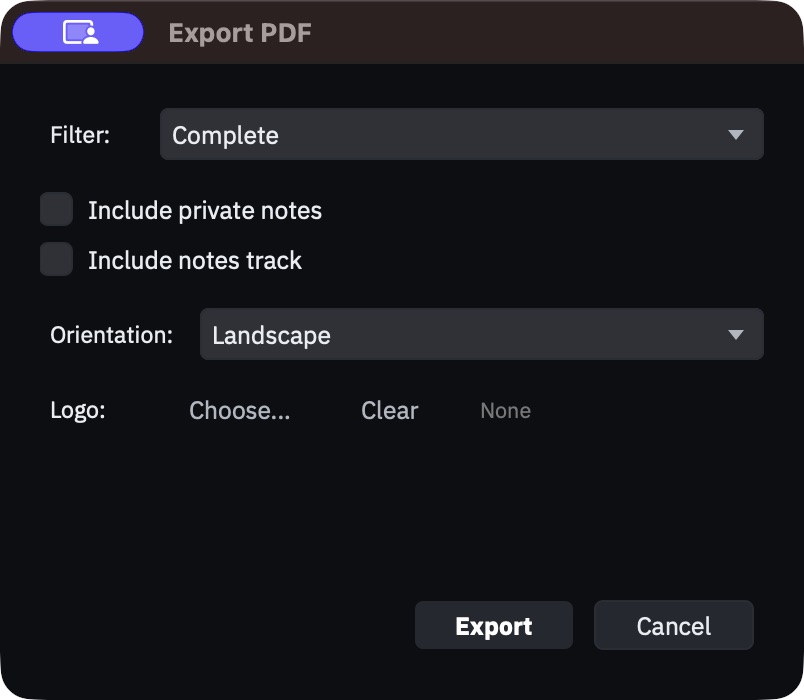
Filter decides the scope, and it is the only option that changes which cues appear.
| Filter | Contains |
|---|---|
| Complete | Every timeline in the current show, one after another. With no show loaded, every timeline in the project |
| Cue List Only | The active timeline alone |
| CAM 1 … CAM n | The active timeline, filtered to the cues that put that one camera on air |
The camera entries stop at your configured camera count, so a project set to 8 cameras offers CAM 1 through CAM 8.
The camera filter is what makes a per-operator sheet. Camera 4's copy holds only Camera 4's shots, each with its in-timecode and its shot description, so the operator counts their own cues instead of reading past everyone else's.
Include private notes adds a tinted column of your director notes. The toggle is hidden entirely when no cue in the project carries private notes — if you cannot find it, that is why.
Warning
Private notes are private from the crew's screens, not from a file you hand someone. Tick this box and they are printed. Think about who receives the PDF.
Include notes track interleaves the timeline's notes track as its own thin blue rows, placed at their timecode among the cues.
Include M/E status track interleaves the status blocks as coloured bands with their in and out timecodes. Like the private notes toggle, it is hidden when no timeline in the project has any status blocks.
Orientation is A4 landscape or A4 portrait. Landscape is the default and gives the description column room; portrait suits a clipboard.
Logo points at an image for the cover. It defaults to the logo already stored in the project's metadata, and Clear drops it from this export only.
What comes out
A cover page, centred: your logo (scaled to fit, at most 200 x 90 pt), the show title — falling back to the project name if the show has no title — a brand rule, then whichever of these metadata fields are filled in, silently skipping the empty ones:
Venue · City · Date · Time · Production · Director · Assistant Director · Revision · Last Modified
Below them sits the filter label, which is how a reader tells two printouts apart: the
show name for Complete, the timeline name for Cue List Only, and CAM 4 Shotlist for a
camera sheet. The foot of the cover carries the HotPunch colophon.
Venue, city, date, time, revision and last-modified come from the show metadata; the production company, director and assistant director come from the project metadata. An empty cover means those fields were never filled in — see The pool and the shows.
Content pages, one table per timeline, with a running header (show title left, timeline
name centre, page / total right) and a footer with the generation timestamp.
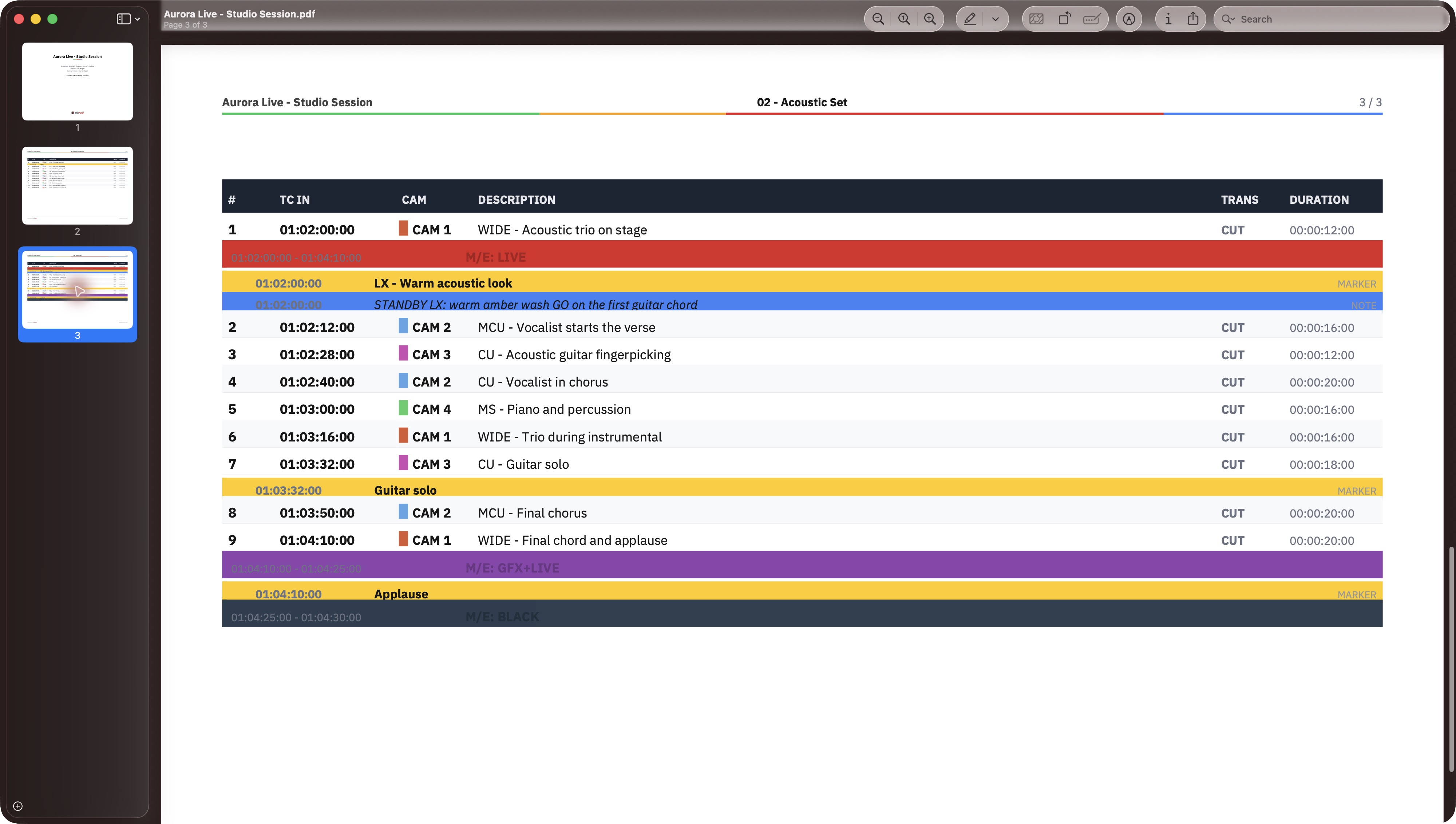
The columns are:
# · TC IN · CAM · DESCRIPTION · NOTES (only with private notes on) · TRANS ·
DURATION
# is the cue's shot number, the one the crew calls — 9, or 9A on a locked timeline.
TC IN is absolute timecode: the cue's position offset by the timeline's start timecode,
formatted at the timeline's own frame rate and drop-frame setting. CAM carries a colour
chip matching the source. DESCRIPTION is the shot description, NOTES the private ones.
Both wrap to at most four lines; anything longer is cut off in the PDF.
TRANS prints the real transition name — CUT, MIX, DIP, WIPE, DVE, STING, CLIP — not just
cut or mix.
Rows are not only cues. Markers always appear, as thin rows tinted with the marker's own colour. Notes and status blocks appear when you asked for them. All of it is sorted by timecode, so the sheet reads in the order the show happens.
Dual M/E
When the timeline has cues on M/E 2 and dual M/E is enabled, each timeline is printed
twice — once per bus — and the page header names the bus (Act 1 - M/E 1, then
Act 1 - M/E 2). Markers and the notes track repeat in both passes, so each bus's
section is complete on its own. Status blocks do not: each pass carries its own bus's
status track. See Dual M/E.
Accented and non-Latin characters print correctly. If you have seen a HotPunch PDF mangle them, that was an older build.
While it exports
You pick the destination file, and then HotPunch generates the PDF on a background thread behind a progress dialog you cannot cancel. On a large show this takes a moment.
The dialog does not lock the application, so the guard is explicit: while an export is in
flight, New Project, Open Project and Close Project are refused with the toast
Finish the PDF export first. Everything else, including Save, stays available — but the
export is reading the project off the message thread, so this is not the moment to
restructure it.
When it finishes, HotPunch reveals the file in Finder or Explorer. If generation fails you
get an Export Failed alert and no file.
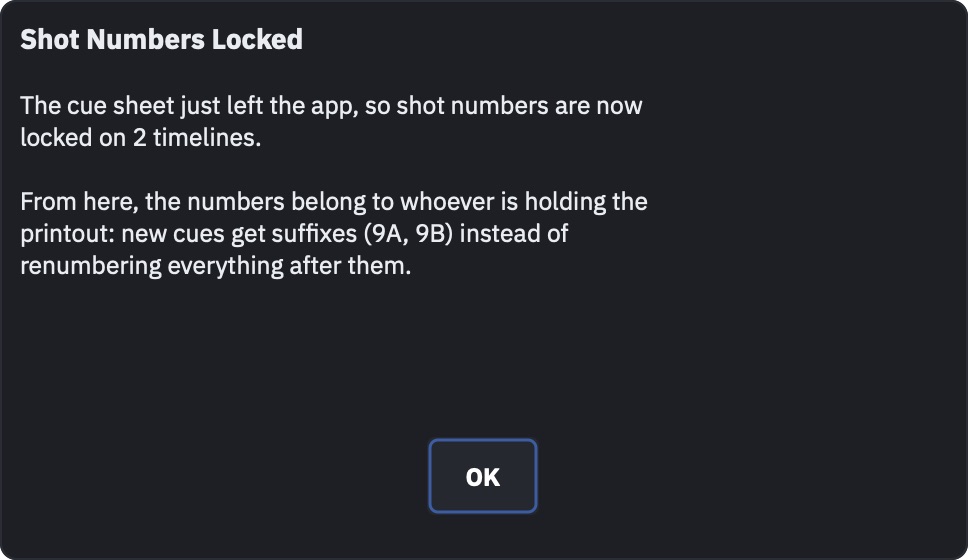
A successful export also locks the shot numbers on every timeline of the current show, and a dialog tells you so: from then on a cue inserted between two numbers gets a suffix instead of renumbering the printed sheet. See Locking.