HotPunch
HotPunch turns a show rundown into a timeline, and the timeline into commands for your video switcher.
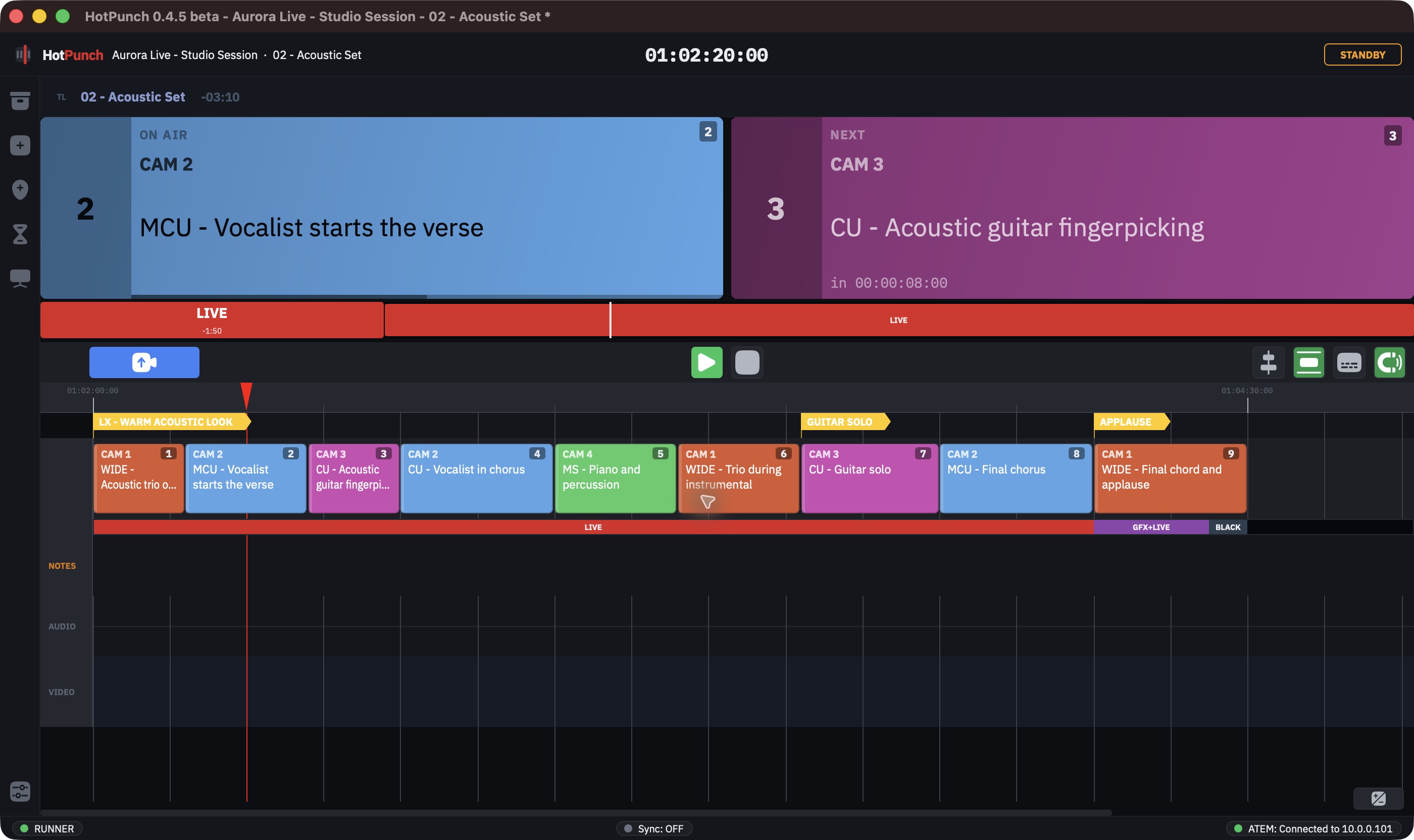
You place cues on a timeline: each cue says which source is on air, from when, and how it gets there. During the show the playhead runs — on its own clock or chased to incoming timecode — and HotPunch sends the switching commands as each cue comes up. At the same time it publishes what is on air and what is coming next to camera operators, in a browser.
You keep the creative decisions. HotPunch keeps the count.
Beta
This is beta software, version 0.4.5. It has been used on real shows, but not on every mixer, every frame rate or every network. Where a feature is unproven, this manual says so instead of implying confidence. Two habits are worth keeping for the whole beta: rehearse the whole show in Standby before you go live, and know how to reach Break without looking at the screen.
The model, in one page
Five things carry the whole application.
Project — one .punch file per production. It holds the timeline pool, the shows, the
settings and the metadata. It does not hold your media: audio and video files are
referenced by path, so a project moved to another machine needs its media to come with it.
See Moving a project.
Timeline — a stretch of show with its own start timecode, duration and frame rate. Everything is positioned inside it: cues, markers, notes, status blocks, audio and video tracks. A project can hold many timelines; all of them together are the pool.
Show — an ordered selection of timelines for one performance. The pool is your library; a show is tonight's running order. One timeline can appear in several shows, which is how the same act follows you from venue to venue. Timecodes may overlap freely inside the pool, but not inside a show — that is what lets incoming timecode identify one position unambiguously. One show is active at a time.
Cue — one switching instruction: a source, a position, a duration, and a transition into it. Cues also carry a shot description for the operators and private notes for you. See Your first timeline.
Tracks — everything else on the timeline that is not a cue: markers, the notes track, the M/E status track, and the reference audio and video you build against. See Building the show.
The four operational states
Everything HotPunch does — whether it talks to the mixer, whether you can edit — follows from one state.
| State | Editing | Mixer commands | What it is for |
|---|---|---|---|
| Offline | Yes | None. No connection | Building the show |
| Standby | Yes | Logged, not sent ([DRY-RUN]) |
Rehearsing against the real rundown |
| Live | No | Sent | The timeline is driving the mixer |
| Break | No | Sent, but only when you send them | Manual override without leaving the show |
The path through them is one road, not a menu:
Offline  <->  Standby  <->  Live  <->  Break
                             ^___________|
Break is reached from Live and returns to Live. Both Live and Break can drop back to Standby — that is how a show ends. Offline is only ever adjacent to Standby.
Two consequences worth internalising before your first show:
- Dry run is not a setting. It follows the state. In Standby every command is written
to the log with a
[DRY-RUN]prefix and nothing reaches the mixer. In Live and Break it is off. There is no switch to forget. - Break still commands the mixer. It is not a disconnect. It stops the timeline from driving, and leaves you driving.
Going live, leaving live, and the three ways a show falls into Break are in Running the show.
What "editing is blocked" means, exactly
In Live and Break, HotPunch refuses timeline edits and answers with a toast: cue sources, transitions, drags, resizes, delete/cut/paste/duplicate, notes, markers, status blocks, the timeline's own frame rate and start timecode, changing show, opening Settings, opening another project, undo and redo, CSV import, and dropping media on the window. Manual seek is refused in Live and allowed in Break — in Break you are the one steering.
The boundary is deliberate, and it is not a wall around the entire application. These remain possible on air, by decision, and they are the ones to keep your hands off:
- The timeline sidebar: creating a timeline, adding one from the pool, removing, reordering, and "Make Unique to This Show".
- File > New Timeline, which is the same thing through another door.
- Adding a marker at the playhead through
Alt+M, the toolbar button, or Transport > Add Marker. The same action from the Markers panel is refused. It is harmless — a marker commands nothing — but it is not blocked either.
Warning
In the sidebar, "Create New Timeline" creates the timeline before it opens the edit dialog. Cancelling that dialog from the sidebar removes it again; through File > New Timeline it does not. Neither is a good gesture to discover during a show.
How to read this manual
The spine is one continuous path, in the order a production actually happens. Read it through once, before a show and not during one. There is no separate quick start: this is it.
- Install and activate — getting the app running and licensed
- Your first timeline — a project, a timeline, cues, transitions
- Building the show — markers, notes, status, shows, imports
- Cue sheets — the PDF the crew works from
- Connect a mixer — protocols, input mapping, verification
- Rehearse — Standby, dry run, what to check
- Run the show — GO LIVE, Break, the output display
The modules are independent. Read one when you need it; each states its prerequisites.
Timecode sync · Dual M/E · Web tally · ISO recording · Redundancy · Remote control · Handoff to post · Moving a project
The reference is for looking things up: Settings · Keyboard shortcuts · Licensing · Troubleshooting
Note
This manual does not list what every field does — every control in the application carries a tooltip, and that is the right place for it. What you will find here is the part a tooltip cannot tell you: what a choice costs you later.