ISO recording and review
A switcher that records every camera separately turns a live cut into a rough assembly you can fix afterwards. HotPunch drives that recording from the timeline and then, after the take, lets you re-time your cuts against the recorded angles before handing the show to post.
What you need
- A Blackmagic ATEM with ISO recording, connected over the ATEM protocol. This is the one feature in HotPunch that is not protocol-agnostic: no other switcher's engine implements record start and stop, and none is going to pretend to. See Connect a mixer.
- Somewhere for the ATEM to record. HotPunch never picks a disk and never checks free space — that is entirely the switcher's business.
- For the review afterwards: the recorded folder, reachable from this machine, and a saved project (proxies are written next to the project file).
Recording
Turning it on
Settings > Mixer, with ATEM selected, has a single checkbox: Auto ISO Recording. It is off by default and it is saved with the project.
That is the whole configuration. There is no folder field and no camera-to-ISO mapping of its own — the review reuses the input mapping you already set for the switcher.
What actually starts a recording
Pressing play on the timeline — nothing else. Going Live does not start a recording, so a timeline that was already rolling when you hit GO LIVE keeps rolling with the switcher idle. If you want the take, stop and press play again.
Stopping or pausing the timeline stops the recording. Switching timelines stops the current recording and starts a new one under a new name.
Nothing is recorded in Standby
Record commands go through the same dry-run gate as everything else, so they are
suppressed in Standby and only reach the switcher in Live and Break. A rehearsal pass
produces a log line — [DRY-RUN] ATEM: Auto-rec start (suppressed in Standby) — and no
files. That is deliberate: rehearsals should not fill the switcher's disk. It also means
the only way to prove the recording works is to go Live. See
Dry run is not a setting.
On a redundancy backup that is chasing the primary, dry run stays on even in Live — so the backup never records. Only the machine actually driving does.
The two-second gap after a stop
A start issued within two seconds of the last stop is dropped, because the switcher is still closing the previous file and would either refuse it or produce a broken clip. The dropped start is silent apart from a log line; there is no retry and no queue. Jab play–pause–play and you will find yourself not recording. Wait, then press play again.
The filename, and why you must not rename anything
HotPunch names each take after the timeline, sanitised to plain characters, plus a timestamp:
Opening Titles_2026-08-09_201455. That name is the key to everything that happens later.
Renaming the recordings breaks the sync silently
The review matches a folder of clips back to its take by comparing that filename exactly. Rename the files, or reorganise them, and the match simply fails — no error, no warning. You still get a review session; it is just aligned to zero instead of to the take, which puts every angle hours away from the timecode you expect.
Copy the ATEM's folder as it is. Rename afterwards, never before.
How the alignment actually works
Worth understanding, because it sets your expectations for accuracy.
HotPunch does not send its timeline timecode to the switcher, and the switcher does not embed HotPunch's clock in the files. Instead:
- When the ATEM confirms that recording has started, HotPunch takes an anchor: the switcher's own clock at that instant, paired with the timeline position at that instant. The anchor is saved in the project.
- Later, the review reads each clip's start timecode from its
tmcdtrack, using ffprobe. - The difference between the two is the offset that maps timeline time onto clip time.
Two consequences:
- The anchor is accurate to about one second. The switcher's clock arrives as hours-minutes-seconds; the frame count is discarded. That is the dominant error in the whole chain, and it is why there is a manual trim control.
- If a clip has no
tmcdtrack, or ffprobe cannot read it, its start timecode is taken as zero — with no message. The angle then sits an hour or more out. If one camera is wildly out of step with the others, that is the first thing to suspect.
Reviewing a take
Opening it
Window > ISO Review... — not File, whatever older documentation said. There is no keyboard shortcut. It opens as its own window, plus a second window, PGM Preview.
An open ISO Review blocks GO LIVE
The gate is one-way: you can open the review at any time, but you cannot go Live while it
is open. The GO LIVE button greys out with the tooltip "Close the ISO Review window
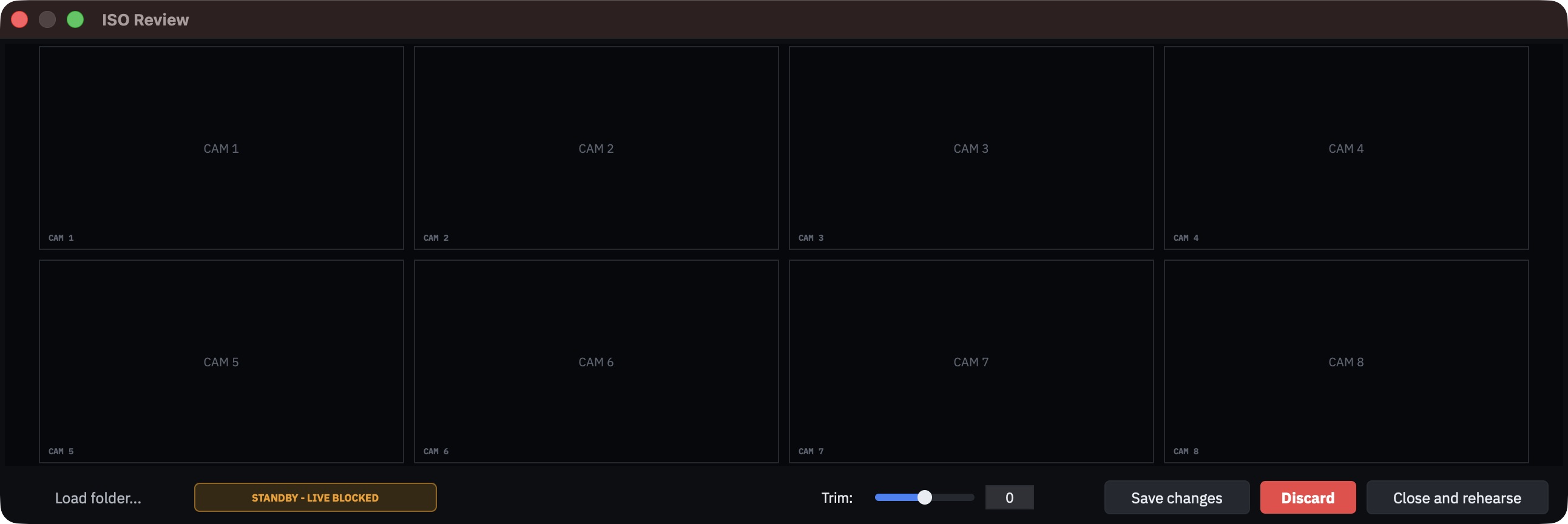
before going Live", and the review's own status pill reads STANDBY - LIVE BLOCKED.
Close it before the show, not during.
Loading a folder
Load folder... opens a dialog titled Load ATEM ISO folder. Point it at the folder the ATEM produced, unchanged. It reports how many clips it recognised, and which timeline it matched by name.
What it expects to find, and it is not flexible:
.mp4files only. ProRes or any other container is not recognised.- The programme mix in the root of the folder, and the camera ISOs in a subfolder named
exactly
Video ISO Files. Neither is searched recursively. - Filenames in the ATEM's own grammar:
<name> CAM <n> <take>.mp4for a camera,<name> <take>.mp4for programme.
Anything that does not fit is dropped without comment. "No recognizable ISO files found in this folder" usually means you pointed at the parent of the right folder, or at a set of files somebody has already tidied up.
The Timeline dropdown does nothing
The load dialog offers a timeline selector. It is ignored — the review always drives the timeline that was active when you opened the window. Select the timeline you want before opening ISO Review.
Up to twenty slots, one per camera
The viewer is a grid of tiles, one per camera, camera 1 top-left. Before a folder is loaded
it shows eight empty tiles, labelled CAM 1 to CAM 8. Once a take is loaded the grid sizes
itself to the highest camera number found: 4 x 2 up to camera 8, 4 x 3 up to 12,
4 x 4 up to 16 and 5 x 4 up to 20. A camera with no clip in the take keeps an empty
tile with just its label; a camera whose proxy is still being built shows a progress bar.
The tile matching the cue under the playhead is outlined in red.
Cameras 21 and above never appear. There is no paging, no scrolling and no way to reassign a tile. The load dialog will still count those clips, so the number it reports can be larger than the number of angles you can see.
You cannot review a recording that is still running
Before building each proxy, HotPunch measures the file twice, a second and a half apart. If it grew, the job fails: a partially written recording has a plausible-looking header and would produce a truncated proxy that gets cached and reused forever.
So: stop the recording, then review. A tile whose proxy failed sits on an empty progress bar indefinitely — the reason is written to the console log, not to the screen, so an angle stuck on "CAM n - proxy..." is the symptom you have to learn to read.
Proxies
Playback runs on small H.264 proxies — 640x360, no audio — generated in the background the
first time a folder is loaded. They live in a folder called .iso_proxies.
Two things about that folder catch people out:
- The leading dot makes it invisible in Finder and in Explorer's default view. You will not find it by browsing.
- It sits next to the project file, not next to the recordings. Proxies for footage on a
fast external drive land on whatever volume the
.punchis on.
They are reused across sessions as long as they are newer than the source, which makes the second load instant. Nothing ever deletes them. Budget roughly 9 MB per camera-minute, and prune the folder by hand between productions.
What you actually do in the review
The review window has no editing controls. You edit on the main timeline, as usual, and the review follows along: it mirrors the playhead and highlights the camera the current cue calls. J/K/L shuttling works, but only while the main window has focus — the review window does not handle keys.
Known limitation: the grid does not scrub
In the current build the tiles load their proxy and then stay on that frame — they do not follow the playhead, and the Trim slider has no visible effect on them. The PGM Preview window is the one that tracks the playhead and switches angle as cues change; treat the grid as a contact sheet showing which cameras are present and which one is on air, and do your re-timing against PGM Preview.
This is a defect, not a design choice, and it is expected to be fixed. Verify the behaviour in the build you are running before you plan a session around it.
Getting out, and what each exit does
| Button | What it does |
|---|---|
| Save changes | Keeps every cue position as it now stands, and closes |
| Discard | Puts every cue back where it was when the review opened, and closes |
| Close and rehearse | Identical to Save changes — no separate rehearsal mode is entered |
Closing with the window's X is safe. With no changes pending it just closes; with changes pending it asks, with a dialog titled Close ISO Review offering Save changes / Discard / Cancel. Cancel leaves everything as it was.
Discard also wipes your undo history
Discard restores the cue positions on both M/E lanes — that part is what you want — and then clears the timeline's undo stack, including everything you did before the review started. There is no undoing a Discard, and no getting back to a state from earlier in the session. Save if you are unsure; you can always move the cues back by hand.
"Pending changes" is worked out by comparing against the snapshot taken when the review opened: a cue that moved, a cue that was deleted, or a change in the number of cues. It is not a flag that something was touched, so nudging a cue and putting it back leaves nothing pending.
What is not covered
The recordings themselves stay on the switcher's media and never enter the project. Neither the take folders nor the proxies travel when you move a project — see Moving a project between machines. Getting the cut itself to the edit suite is Handing off to post.