Remote control
HotPunch can be driven from outside itself two ways — a MIDI controller and an OSC controller — and they are the same job: a physical button somewhere in the gallery that does what a button in HotPunch does. They are documented together because the important things about them are the same things, and because the differences between them are the part that bites.
The rule that holds for both: remote control is another door into the same room, not a back door. Nothing you send over MIDI or OSC skips the checks that stop you going live without a licence, without a mixer, or with the ISO Review window open.
What you need
- MIDI: a control surface with a MIDI output that HotPunch's machine can see — a Stream Deck with a MIDI plugin, a small note-sending pad, a lighting desk. Notes only.
- OSC: anything that can send OSC over UDP to a port on the HotPunch machine — Bitfocus Companion is the intended case, and a Companion module exists as a separate project.
- A network you trust. See Nobody is checking who you are.
Neither is licence-gated. Both are configured per project.
Which one to use
| MIDI | OSC | |
|---|---|---|
| Commands available | 4 | 15 |
| Per-M/E break | no | yes |
| Cue navigation, follow-playhead, transport stop | no | yes |
| State feedback to the controller | none | yes |
| Debounce against double triggers | 200 ms per command | none |
| GO LIVE behaviour | instant, one message | arm-to-confirm, two messages |
If your surface can speak OSC, speak OSC. MIDI is the shorter road for the four things it does.
MIDI
The four commands
| Label | What it does |
|---|---|
| ON AIR | Standby → Live, and Live → Standby |
| BREAK | Live → Break, and Break → Live |
| PLAY/STOP | Play / pause the active timeline |
| LOCK TC | Arm or disarm the timecode lock |
That is the whole list. There is no per-M/E break, no cue navigation, and no MIDI output at all — HotPunch never lights up your controller's LEDs, because it never sends MIDI.
Binding
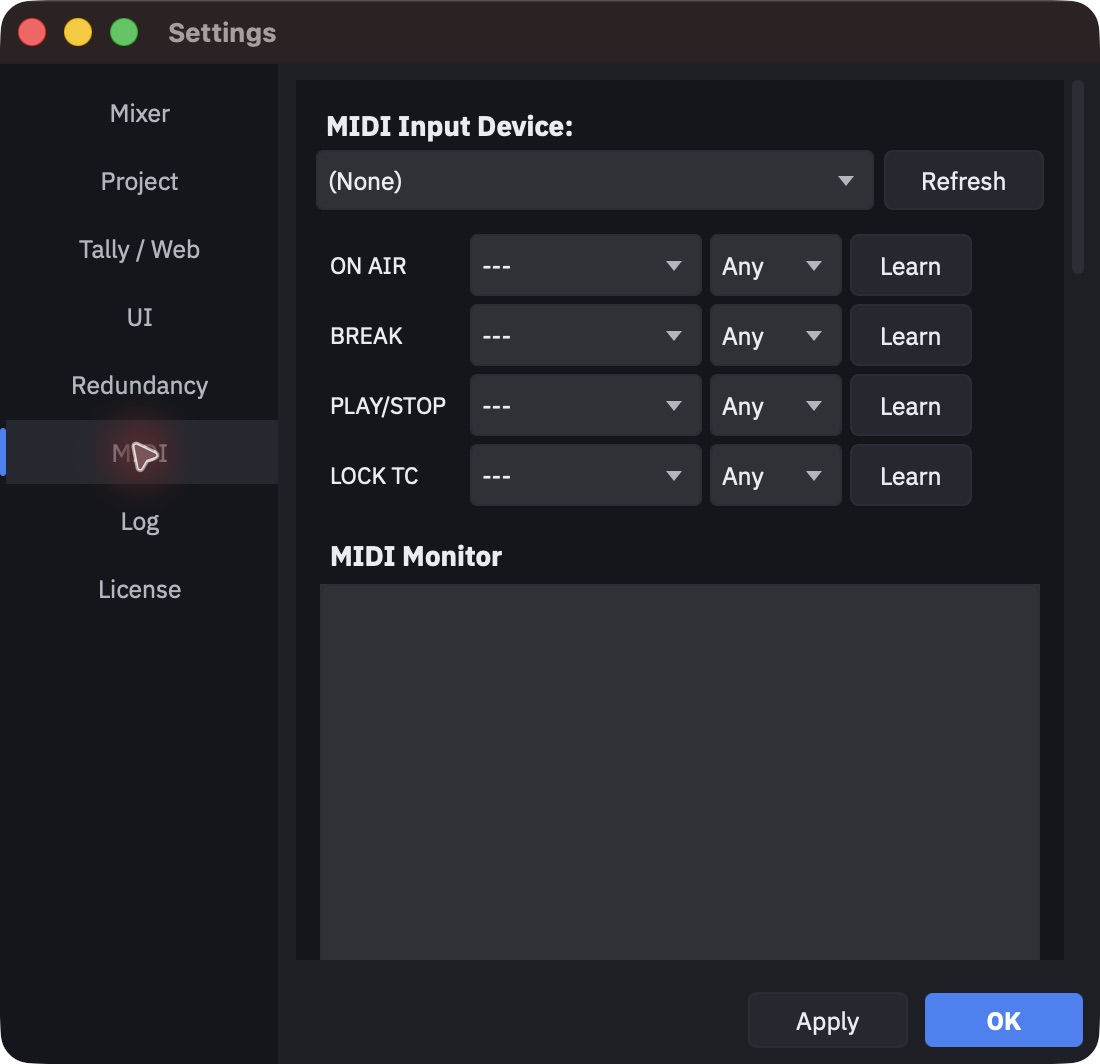
Settings > MIDI. Choose the input device, then, for each command, a note number and a channel (or "Any"). Press Learn on a row and the next note you play fills both fields.
- Note-on messages only. Control changes are ignored entirely; if your surface sends CC, it will not work and nothing will say so.
- A note-on with velocity zero — how some devices spell note-off — is ignored.
- Changes apply as you make them, and are saved in the project.
- Learn has no timeout and no cancel. Once armed it waits until a note arrives or you press Learn on another row.
The MIDI Monitor at the bottom of the tab prints what it receives. It is the only way to find out whether your surface is sending what you think it is sending, and it is worth ten minutes before a show.
Warning
MIDI bindings are not restored on their own when you launch HotPunch or open a project. They are applied when the MIDI tab applies them — which means opening Settings > MIDI and pressing OK or Apply once, in each session, before the bindings do anything. Until you do, the device is not even opened and the monitor stays empty. Make it part of your setup routine.
A device that is unplugged and plugged back in is reopened automatically within a couple of seconds, provided it had been opened in the first place.
Repeated triggers
Each command ignores a repeat within 200 ms of itself. The window is per command, not global, so hammering BREAK does not swallow a PLAY that arrives at the same moment. The value is fixed and there is no control for it.
ON AIR is not the GO LIVE button
The GO LIVE button uses arm-to-confirm: press once to arm, again within three seconds to confirm, in both directions. See Go live.
MIDI ON AIR does not. One note and you are live. One note and the show ends. This is deliberate — a physical button that needs a double press is a physical button that gets pressed once in an emergency — but it means the note you bind to ON AIR is the most dangerous note on your surface, and it should not be next to anything else you press.
It is still gated. A MIDI ON AIR that cannot go live is refused with the same Cannot Go Live dialog you would get from the button, for the same reasons: ISO Review window open, licence, no show selected, no protocol engine, engine not connected. And an unstarted Show Pass refuses the first attempt and opens its dialog, exactly as it does from the button — see The Show Pass case.
Two differences from the button that are worth knowing:
- The button also waits for media to finish loading before it will arm. The MIDI command does not consult that, so a MIDI ON AIR fired while audio is still being prefetched goes live anyway.
- From Break, the MIDI ON AIR key does nothing at all. The button ends the show from Break; the MIDI command has no branch for it. To end a show that is in Break, use the button, or exit Break first.
BREAK and LOCK TC
BREAK toggles global break only. Coming out of Break re-runs the full set of live preconditions, so it can be refused — most usefully when the mixer connection is what put you in Break in the first place, and has not come back.
LOCK TC does nothing when the sync source is Off, silently and without a log line, because the button it presses is not on screen. If your remote lock appears dead, check the sync source first. See Timecode sync.
PLAY/STOP is a pause toggle, not a stop: it never rewinds to zero, because in Live that would punch the first cue of the timeline. It works in every operational state.
OSC
Turning it on
Settings > Tally / Web > Enable OSC remote control, with a port next to it. Off by default, port 8010, saved in the project.
What it accepts
Addresses are matched exactly — no patterns, no wildcards. Anything else is dropped without comment.
| Address | Arguments | Effect |
|---|---|---|
/hotpunch/subscribe |
int port, string ip |
Register for state feedback (see below) |
/hotpunch/transport/play |
— | Play / pause toggle |
/hotpunch/transport/toggle |
— | The same play / pause toggle |
/hotpunch/transport/stop |
— | Stop the active timeline |
/hotpunch/golive |
— | Arm, then confirm, GO LIVE or END LIVE |
/hotpunch/endlive |
— | End the show immediately |
/hotpunch/break/all |
— | Enter / leave global Break |
/hotpunch/break/me1 |
— | Enter / leave Break on M/E 1 |
/hotpunch/break/me2 |
— | Enter / leave Break on M/E 2 |
/hotpunch/cue/next |
— | Move the playhead to the next cue |
/hotpunch/cue/prev |
— | Move the playhead to the previous cue |
/hotpunch/sync |
— | Arm / disarm the timecode lock |
/hotpunch/follow |
— | Toggle follow-playhead |
Warning
Every one of these is a toggle. Some of them accept an integer argument and HotPunch
parses it, but nothing reads it: /hotpunch/break/all 1 behaves exactly like a bare
/hotpunch/break/all, so sending it while break is already on turns break off.
When you build controller buttons, build toggles with feedback — the state messages below tell you which way the switch is currently thrown. Do not build separate "on" and "off" buttons; they will fight each other.
Two more things the table does not show: /transport/play cannot force play, it toggles, so
it is indistinguishable from /transport/toggle; and cue navigation is refused while you are
Live, because the playhead is not yours to move on air. It works in Break.
GO LIVE over OSC, and the shared arm
/hotpunch/golive goes through the same arm-to-confirm as the button: the first message
arms it for three seconds, the second confirms. /hotpunch/endlive does not — one message
and the show ends.
The arm state lives on the on-screen button, which has a consequence: an OSC go-live arms the button in the app, and an operator standing at the machine can confirm your remote arm by clicking it. That also works the other way round. Two people, one arm.
When the button is not armable — media still loading, no engine, licence, ISO Review open —
an OSC /hotpunch/golive is refused silently: no dialog, no log line, nothing on the
controller except a state that fails to change. Read the machine, not the button.
State feedback
Feedback is unicast to whoever asked for it. Send:
/hotpunch/subscribe <int: your port> <string: your IP>
Both arguments are required — HotPunch cannot read the sender's address off an incoming OSC packet, so you have to tell it where to reply.
Warning
A subscription lapses after ten seconds. Only another /hotpunch/subscribe renews
it; inbound commands do not, and neither does the outgoing heartbeat. A controller that
subscribes once at startup goes dark ten seconds later. Re-send the subscribe message on
a timer — every few seconds is fine.
There is no working unsubscribe. Stop renewing and the subscription expires by itself.
Subscribers receive the following, whenever something changes and again every two seconds regardless:
| Address | Type | Values |
|---|---|---|
/hotpunch/state/mode |
string | offline, standby, live, break |
/hotpunch/state/armed |
int | GO LIVE is armed and counting down |
/hotpunch/state/playing |
int | The timeline is running |
/hotpunch/state/sync |
int | The timecode lock is armed |
/hotpunch/state/follow |
int | Follow-playhead is on |
/hotpunch/state/dualme |
int | Dual M/E is enabled |
/hotpunch/state/break/all |
int | Global break is active |
/hotpunch/state/break/me1 |
int | M/E 1 is broken |
/hotpunch/state/break/me2 |
int | M/E 2 is broken |
/hotpunch/state/avail/break_all |
int | Whether the global break command would do anything |
/hotpunch/state/avail/break_me1 |
int | Whether the M/E 1 break command would do anything |
/hotpunch/state/avail/break_me2 |
int | Whether the M/E 2 break command would do anything |
/hotpunch/state/heartbeat |
int | A counter that increases every two seconds |
The avail/* messages are what you use to grey out buttons that cannot act right now. The
heartbeat is what you use to notice that HotPunch stopped talking to you — it is the only
message that changes when nothing else does.
Nobody is checking who you are
The OSC listener binds the port on every interface and accepts anything that arrives. There is no authentication, no allow-list, and no rate limit. Anyone who can reach that port can end your show with one packet.
Put it on the production network, not on anything reachable from a guest VLAN or the internet, and turn it off when you are not using it. This is not paranoia about attackers — it is about the laptop in the corner running a stale Companion page that still has your show in its config.
Where the arming rules differ
Collected in one table, because it is the thing that surprises people:
| Action | Button | MIDI | OSC |
|---|---|---|---|
| Go live | arm, then confirm | one message | arm, then confirm |
| End live | arm, then confirm | one message | one message (/endlive) |
| End live from Break | yes | no | yes |
| Refusal is visible | tooltip on the disabled button | dialog | silent |
What is identical everywhere: the preconditions. Licence, show selected, engine connected, ISO Review closed, Show Pass started. No route bypasses them, and each of them is documented in If GO LIVE will not arm.