Building the show
A timeline of cues switches sources. A show also has to tell people what is happening, run in a running order, and survive the change of plan that arrives an hour before doors. This page covers the layers on top of the cues, and the structure around the timelines.
Markers
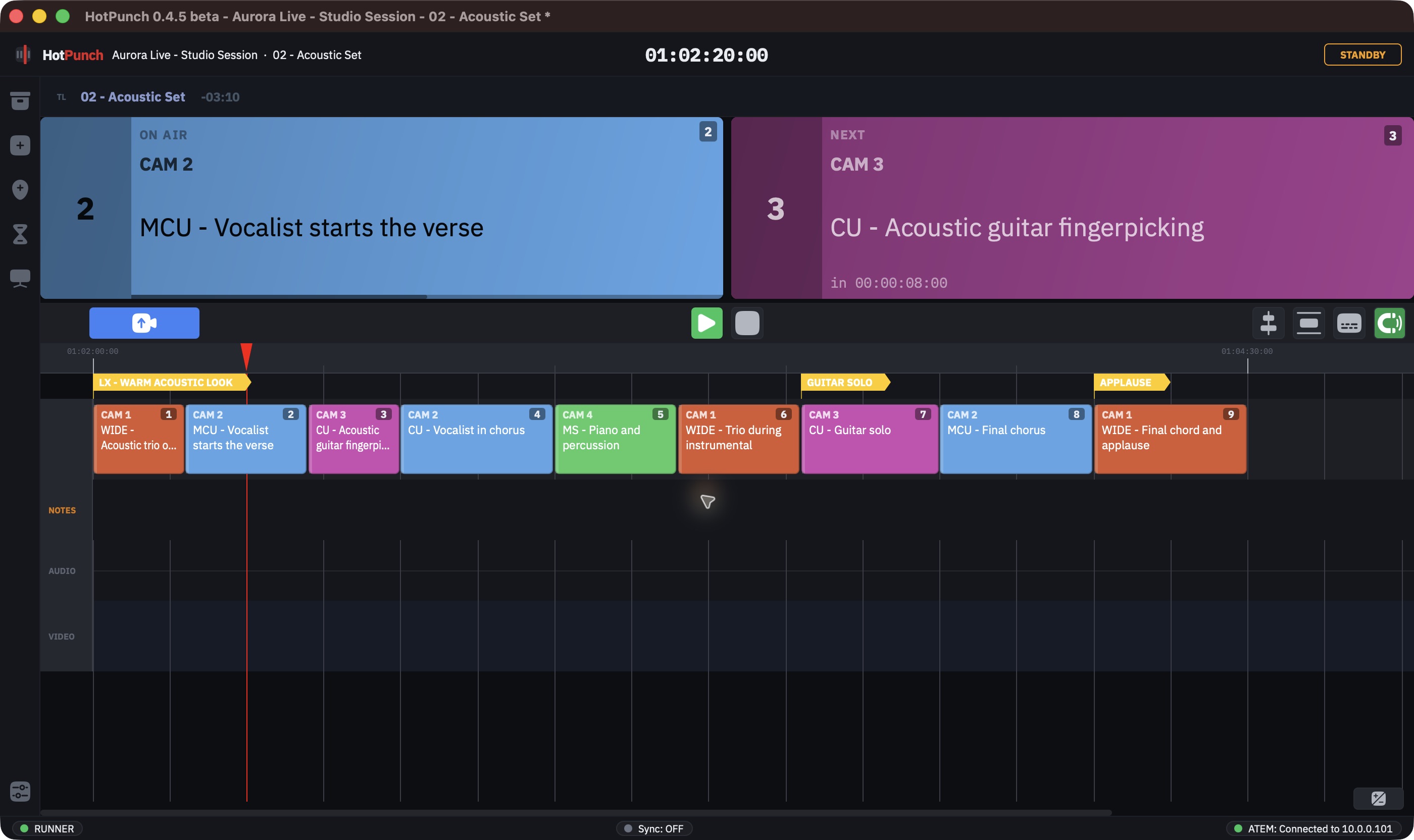
Markers are navigation points: song sections, scene changes, the moment the guest walks on. Each one has a name and a colour, and nothing else — no duration, no text body.
Add one at the playhead with Alt+M, the add-marker button in the toolbar, or the button
in the Markers panel. To rename or recolour, right-click the marker on the marker track and
choose Edit... — there is no inline editing on the track. The dialog offers the name and
one of eight colours.
On the marker track, a single click starts a drag; a double click moves the playhead
there. The Delete key does not remove a marker: markers are outside the timeline's
selection model, so deletion is right-click > Delete, one at a time.
Colour labels and the showcall window
Colours are only useful if the team agrees what they mean. In Settings > UI, under Marker color labels, you can name each of the eight colours for this project — "song", "VT", "link", "hard out". The names then appear next to the colours in the marker dialog.
The Markers panel lists every marker; clicking a row moves the playhead (refused in Live, allowed elsewhere). From the panel you can pop the list out into its own always-on-top window you can drop on a second screen — a marker list large enough to call a show from, independent of the editor.
The notes track
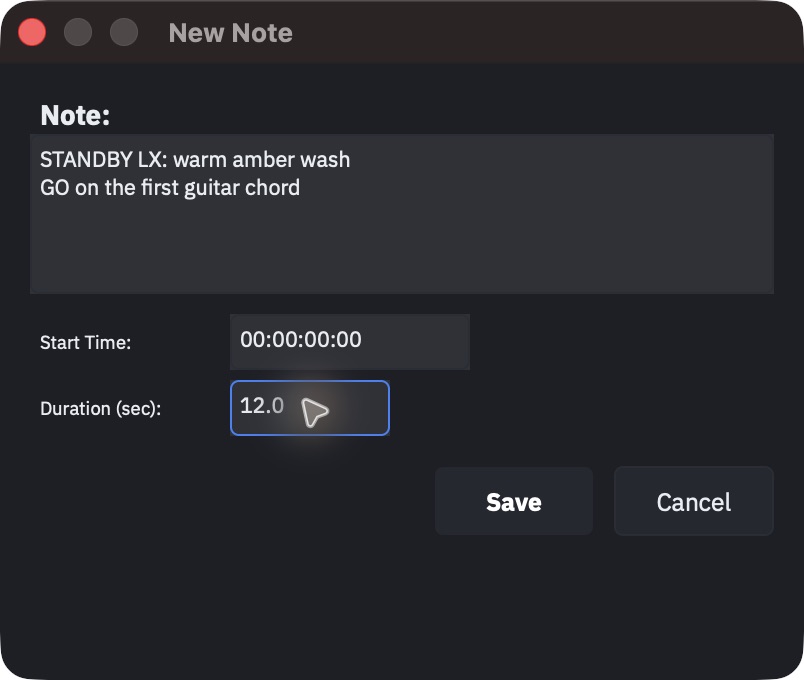
The notes track is for what is happening in the show, not for what a camera is doing. Each note has a start, a duration and up to two lines of text: "verse 2", "band enters stage left", "pyro at 3:45", "guest walks".
Notes are not shot descriptions
A shot description belongs to a cue and describes that shot. A note belongs to the timeline and is deliberately asynchronous with the camera calls — it starts and ends where the show does something, not where you cut. They are different objects with different audiences and different lifetimes. Do not use one for the other.
Double-click empty space on the notes track to create a note, double-click a note to edit it, or use the add-note button in the toolbar. Right-click gives Edit Note... and Delete Note. If you create one near the playhead, it snaps to it.
Who sees notes
- The web views. Notes are published to connected clients. The shipped browser client shows them in the director view, behind its NOTES toggle. The camera view never shows notes — an operator sees their own shot descriptions, not the show-wide running commentary.
- The output display, if you assign the Cur Note or Next Note cell. Those two cells read the notes track (with a countdown to the next one); the On Air and Next cells show the cue's shot description instead.
- The PDF cue sheet, if you tick "Include notes track" on export. See Cue sheets.
Shot presets
Typing the same shot description over and over — "CU singer", "wide", "Danny, look up" — gets old fast. The Shot Presets window is a small reusable list of descriptions you click instead of type.
Open it from the button at the bottom of the Camera flyout panel, below Insert. It is a small always-on-top window, so it can sit on a second screen while you work the timeline underneath.
To use it: select one or more cues on the timeline, then left-click a preset in the window. The clicked text becomes the shot description of every selected cue. If any of the selected cues already carries a different description, one confirmation dialog covers the whole operation and says how many would be replaced — not one dialog per cue. Clicking with nothing selected does nothing, and says so.
Add a preset by typing a name and confirming. To rename, delete, or reorder a preset, right-click it and use the context menu — Rename, Delete, Move up, Move down (the last two are greyed out at the top/bottom of the list). Left click always means "apply this preset"; it never renames or reorders, so a right-click is the only way to change the list itself. Two presets with the same name are the same preset — adding one that already exists is a no-op. Renaming a preset does not touch cues already labelled with it: the preset is a stamp, not a link.
The list lives in the project, alongside the marker colour labels, so it travels with the project file. Import and Export trade it as JSON. Import merges and deduplicates into the current list rather than replacing it — the common case is adding someone else's set to your own, not swapping it out. A malformed file is refused without touching the list you already have.
Shot presets are refused in Live and Break: a cue's shot description is the text a camera operator is reading on their own view right now, so this is the same rule as editing that note directly.
Not placeholders
This window only relabels cues that already have a camera assigned — it does not create cues without a source. To plan shots before you know which camera will give them, the current path is still to create every cue on one camera and reassign afterwards, one cue at a time.
Shot numbers
A shot description tells a camera operator what to frame. A shot number lets a director
call it over talkback instead — "coming to 9" — and it shows up everywhere the shot does:
a small badge on the cue's clip in the timeline, on the ON AIR / NEXT box, as a # column
on the printed cue sheet, and next to each entry in the web tally client's Upcoming Shots
list, the screen the camera operator is actually looking at.
Unlocked, the number is nothing but the cue's position — first cue is 1, second is 2, and so on. Insert a cue between 6 and 7 and everything after it renumbers. That is fine while you are still cutting the show together, because nobody has spoken those numbers out loud yet.
Locking
Locking freezes the numbers that exist. From that point, inserting a cue between 9 and 10 does not renumber anything: the new cue becomes 9A. Insert again and it's 9B, then 9C — the same suffix pattern camera crews have used in pencil on paper cue sheets for decades, because a number already spoken or printed must never move. (Past Z, the suffixes carry on as AA, AB...)
A suffix is the fallback, not the rule. HotPunch only reaches for one when taking a whole number would push somebody else's number along. If a number is free, the new cue takes it. Add a shot after the last one and the count simply carries on — 8 after 7, not 7A, because there is nobody after it to renumber. Delete shot 5 and insert a cue back in that gap and it becomes 5 again, because 5 belongs to nobody at that moment. You only see a suffix where the numbers on either side are genuinely adjacent.
Lock and unlock live in the Edit Timeline dialog (the pencil icon in the timeline sidebar), as a Lock shot numbers checkbox. Like every other field in that dialog, it takes effect when you press Save — Cancel leaves the numbering exactly as it was. Turning it off asks first, and says how many cues will get a new number. That figure counts the cues that genuinely change: unlocking returns everything to plain positions, so a cue whose locked number already matches its position does not move and is not counted.
Two things lock the numbering for you, without asking, because by the time they happen the numbers already belong to someone outside the app:
- Exporting a PDF cue sheet. A number stops being yours the moment it leaves the app — the sheet goes out before the rehearsal, and other people start reading from it. HotPunch locks right after a successful export and tells you with a dialog.
- Going on air. The moment the show goes live, shot numbers lock on every timeline of the show, not only the one currently playing. A show is usually one GO LIVE for several songs; if locking only covered the active timeline, the first song's numbers would be safe while the rest kept shuffling under an operator's feet. HotPunch tells you with a toast rather than a dialog, so it does not sit in front of the show you just confirmed.
Neither automatic lock can be undone with Cmd+Z. They are a safety catch rather than an edit, and an undo aimed at something else — pressed in Standby between two songs — would otherwise unlock the numbering silently. The way back is the checkbox, which asks first. The checkbox lock itself is undoable: there you chose it.
A locked timeline shows a small padlock next to its name in the timeline sidebar, so the
state is visible before you discover it the hard way — inserting a cue and getting 9A
instead of a clean renumber.
The M/E status track
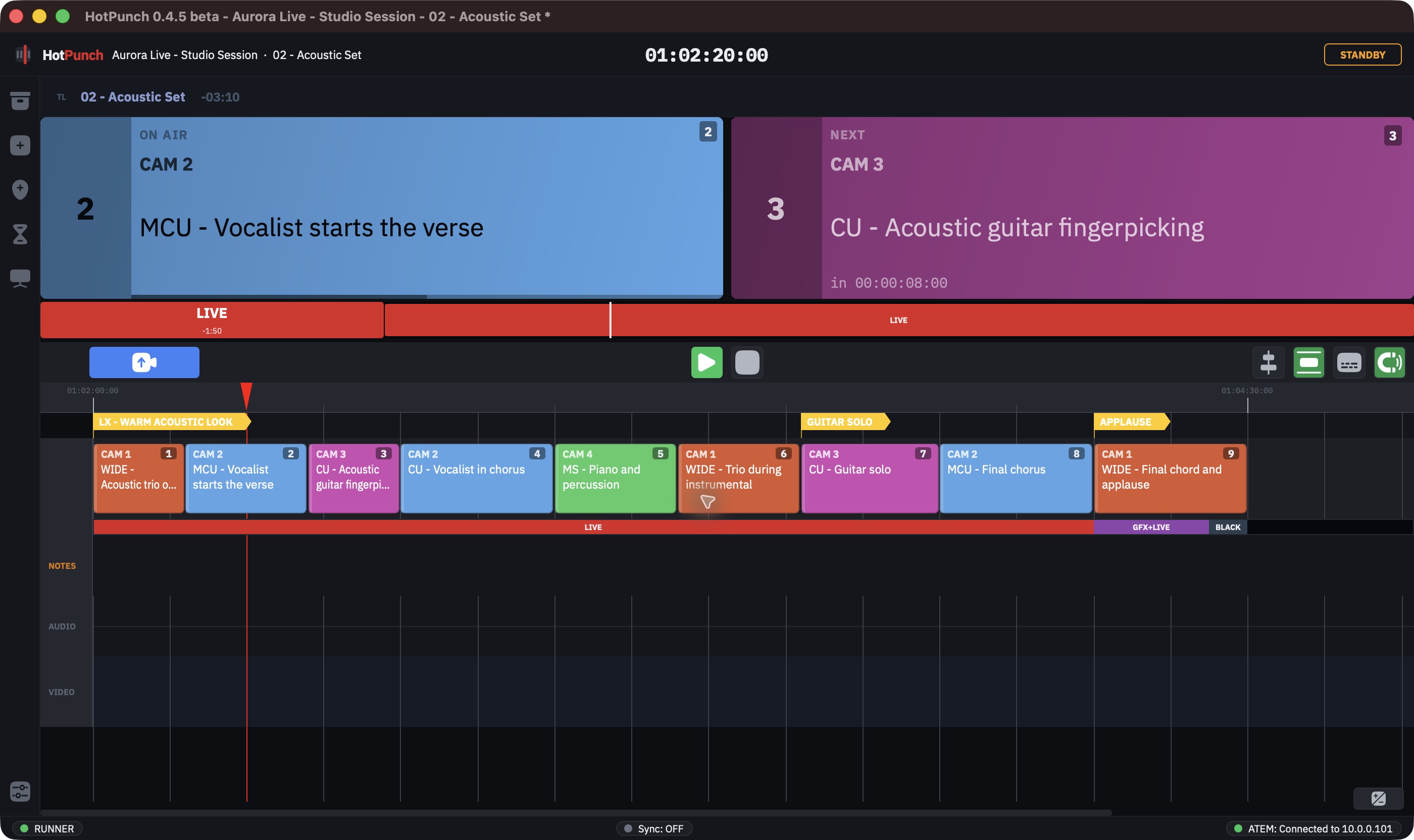
Cameras are only part of what an M/E is doing. The status track maps out the rest as coloured blocks: graphics, full-screen playback, split screen, black. Everybody — you, the graphics operator, the crew on their web views — reads the same strip and knows what is driving the output.
Blocks come in five named types — GFX, LIVE, BLACK, SPLIT, GFX+LIVE — plus CUSTOM, which carries its own label and its own colour for that one block. The five named colours are project-wide, under M/E Status Colors in Settings > UI; a CUSTOM block ignores them and keeps what you gave it.
Drag across empty space on the status track to create a block; HotPunch immediately asks which type it is. Double-click an existing block to change the type, right-click to delete. The track is hidden by default — show it with the M/E status button in the transport bar (icon only, hover for the tooltip) or View > M/E Status Track.
The status strip travels: it appears on the output display as a band, and in the web views. With dual M/E there are two independent status tracks, one under each lane, sharing a single show/hide toggle — see Dual M/E.
Note
Parts of the status-block dialogs are still in Italian in this beta. They work; they just have not been translated yet.
Importing a status track
File > Import > M/E Status Track from CSV... takes a file with exactly this header:
type,start,end
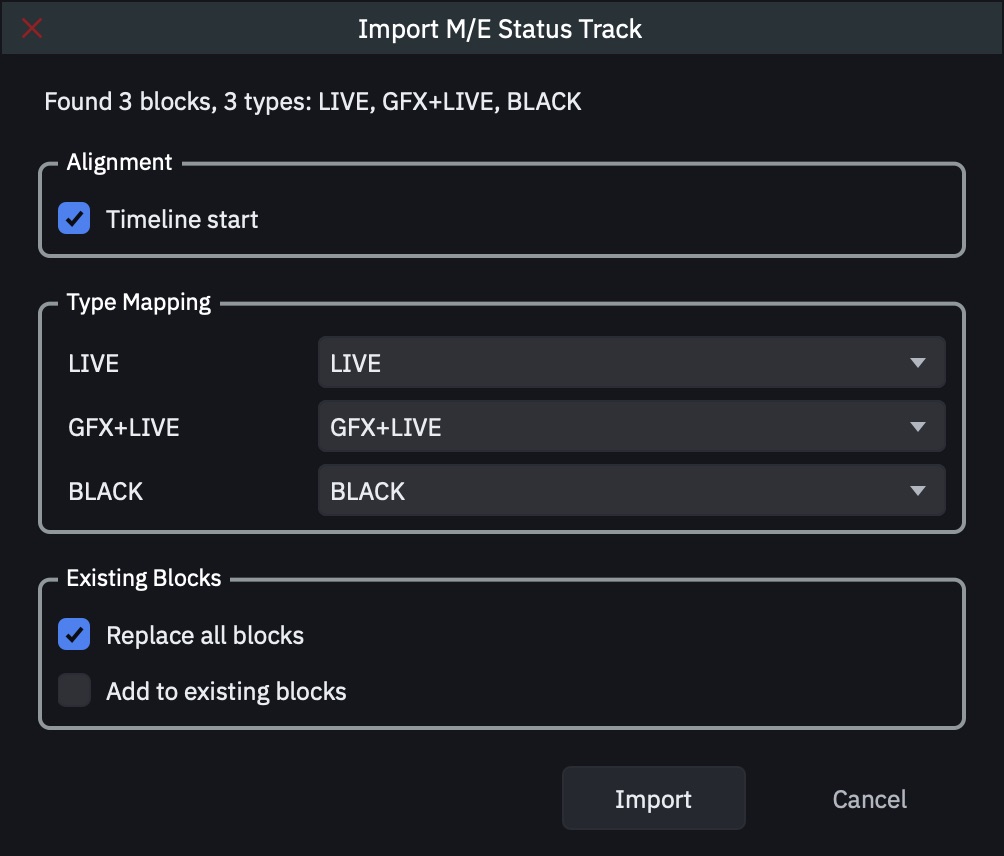
start and end are seconds, not timecode. Any type name is accepted; the import
dialog then asks you to map each distinct name in the file onto a HotPunch type (unmapped
names become CUSTOM blocks keeping their name), where time zero should land — the timeline
start or, when video tracks are loaded, the start of one of them — and whether to Replace all blocks or Add to
existing blocks. This is the path for a rundown exported from a graphics or playback
system.
The pool and the shows
Every timeline in the project lives in the pool. The pool is your library: acts, rehearsals, alternative versions, last year's opener. Timecodes may overlap freely there.
A show is an ordered selection of pool timelines for one performance. Inside a show, timecode ranges may not overlap — that constraint is what lets incoming timecode identify one position without ambiguity. HotPunch enforces it when you build the show, and also when you change a timeline's start or duration.
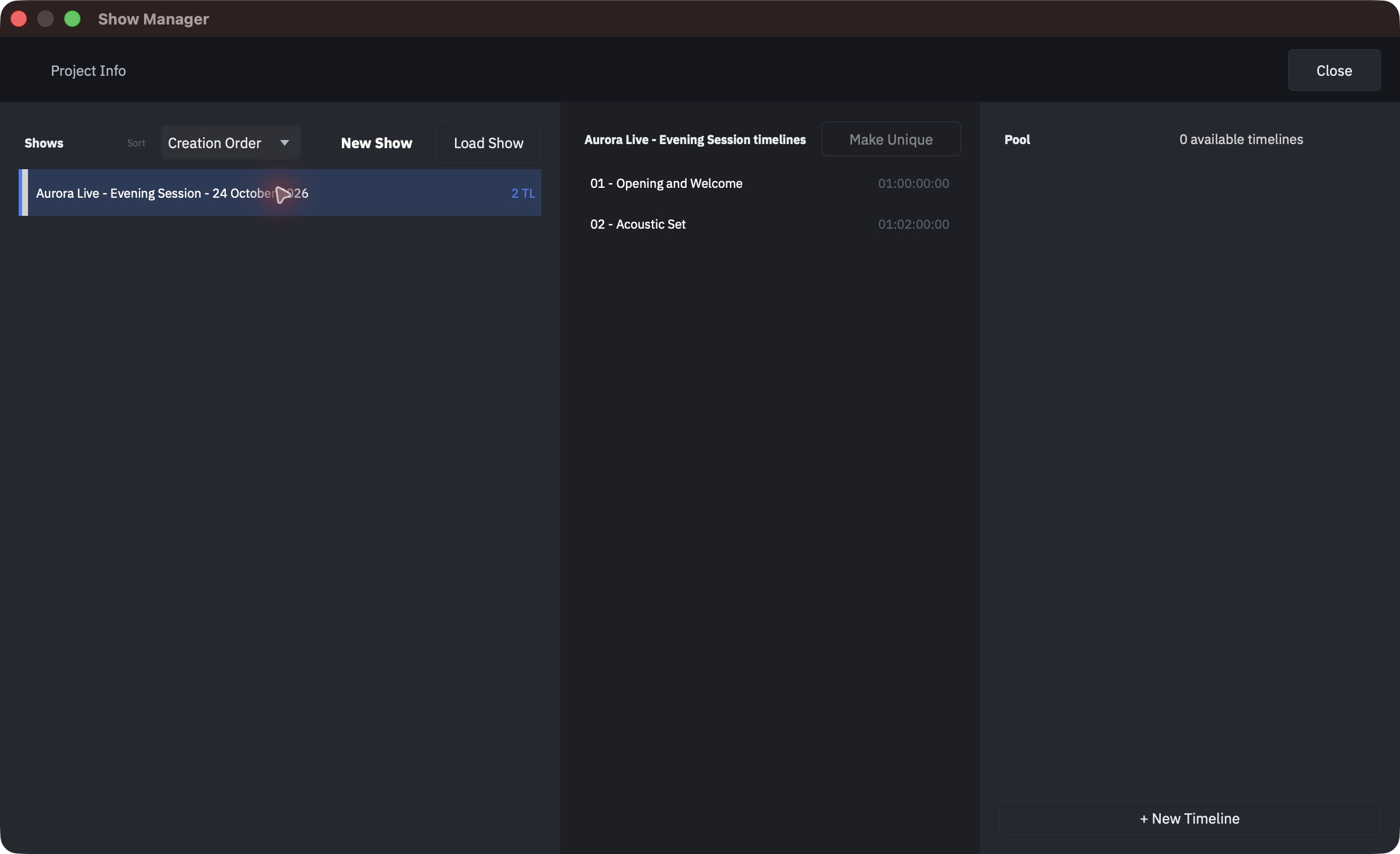
The Show Manager (Project flyout > Manage Shows, or the Window menu) has three columns: the shows, the timelines of the selected show, and the pool — where "pool" here means every timeline not already in the selected show. A Sort dropdown above the shows orders them by creation, name or date; + New Timeline at the foot of the pool creates a blank timeline there, starting with its Edit Timeline dialog.
- Press New Show in the shows column, then drag timelines from the pool into the middle column. Reorder by dragging, or with Move Up / Move Down in the right-click menu.
- A conflict behaves differently depending on how you add. Dragging a timeline whose timecode overlaps one already in the show asks "Replace 'X' with 'Y'?" — accept and the conflicting timeline is removed from the show (and the new one is appended at the end, not in the slot it replaced). Going through Add from Pool... instead simply refuses, with "Cannot Add Timeline".
- Make a show active by selecting it and pressing Load Show, then confirming. The Show Manager closes, and the switch happens as it closes.
- Removing a timeline while a show is active asks which you meant: Remove from Show or Delete from Project. Deleting from the project removes it from every show that used it. The pool can never drop below one timeline.
Warning
The Show Manager does not open in Live. Choose your show before you go on air.
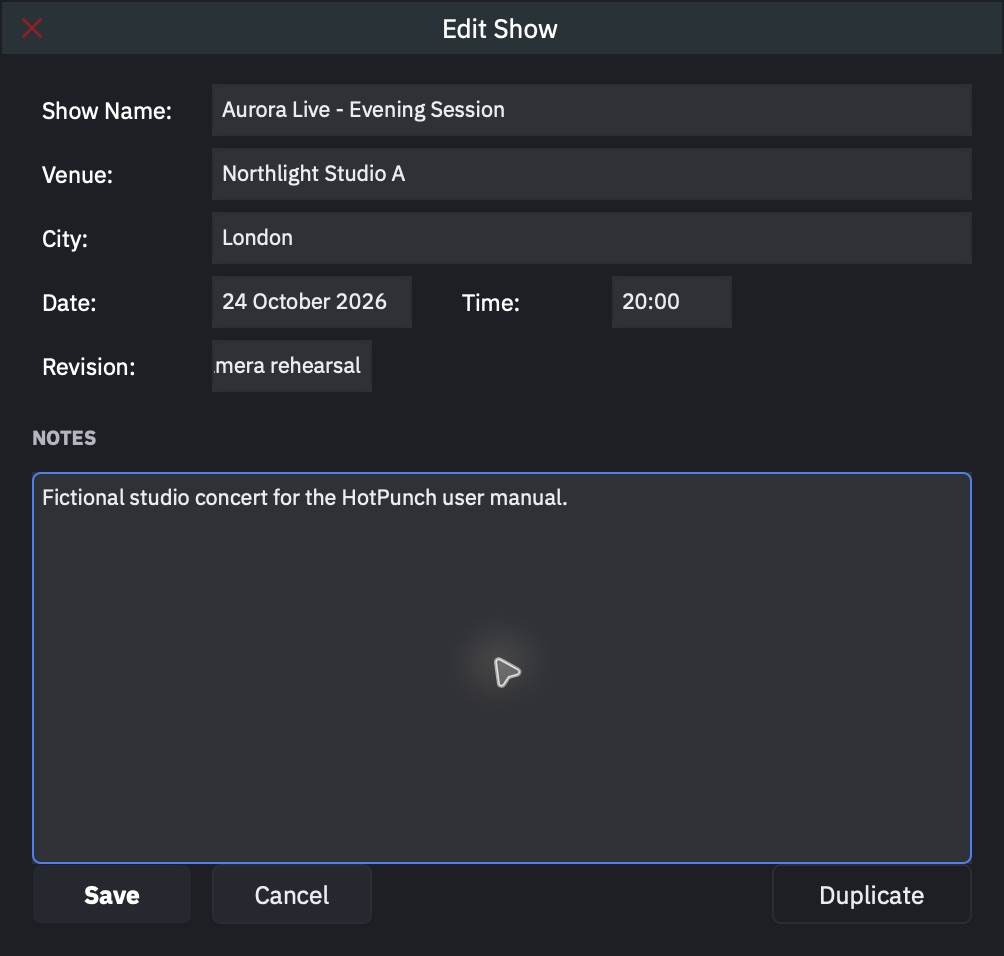
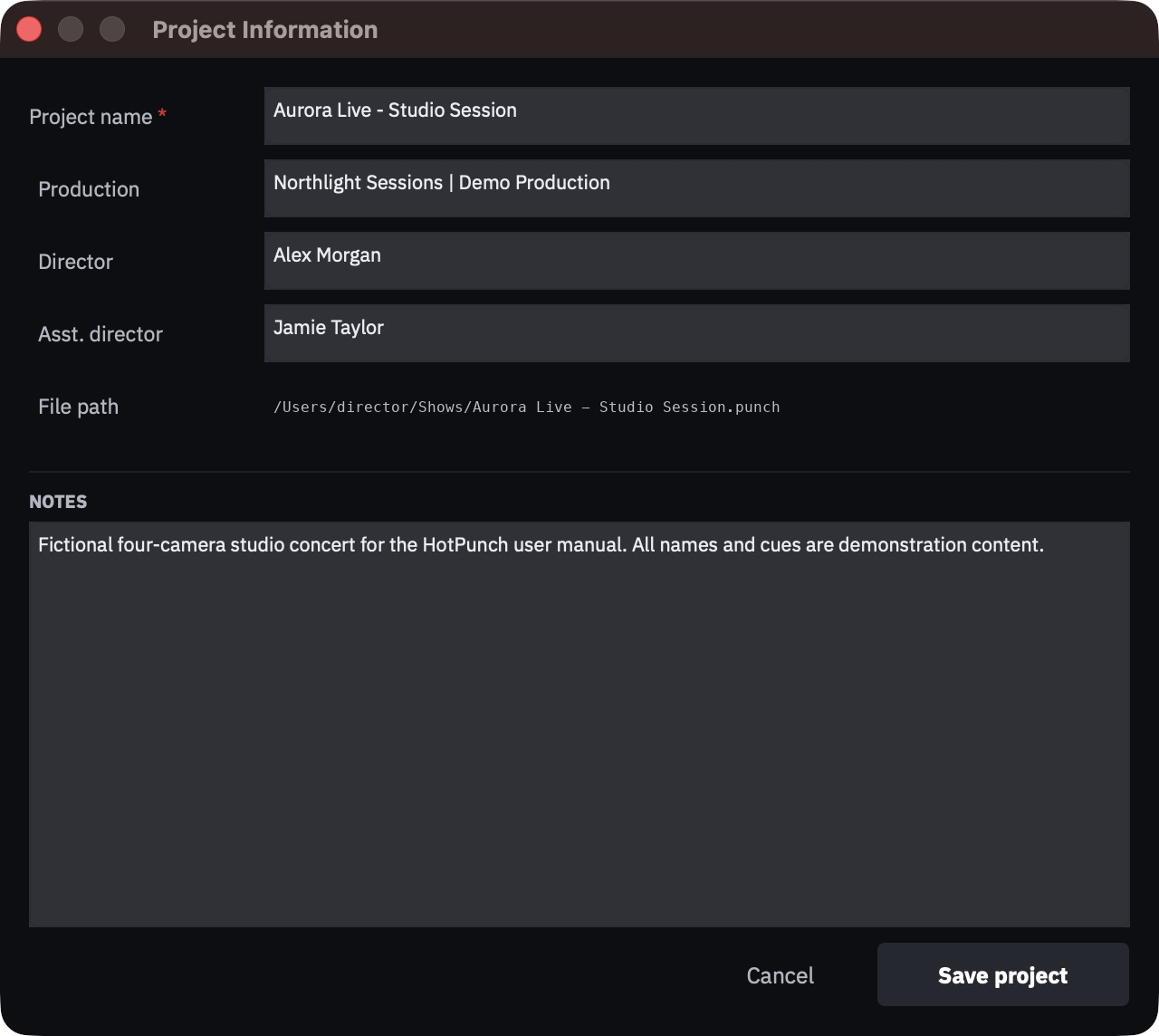
Each show carries its own metadata — right-click it in the Show Manager and choose Edit Info, or use File > Show Info... for the current show. The project's own metadata sits behind the Project Info button at the top of the Show Manager. Both feed the cue sheet cover; see Cue sheets.
Shared timelines and variants
The same timeline can sit in several shows. That is the point: the same act travels with you, and you fix it once.
The consequence is the part to be careful about. Editing the cues of a shared timeline changes it in every show that uses it, silently and immediately. There is no prompt, because there is no copy — it is the same object.
HotPunch does ask in two places:
- Editing a shared timeline's own settings (name, start TC, duration, frame rate) from the sidebar opens a dialog listing the shows involved and offering Modify in all shows or Create a variant for this show only. The variant is a full copy, named Timeline (Show), that replaces the reference in the current show alone.
- Right-click > Make Unique to This Show does the same fork on demand, without waiting for you to edit anything. In the Show Manager the Make Unique button above the show's timelines stays greyed out, and the right-click item is missing, unless the selected timeline really is shared.
Duplicating a show asks the same question one level up: Use same timelines keeps both shows pointing at the same timelines, so a fix propagates to both; Duplicate timelines (independent) copies them, so the new show can drift. Pick "same" for a second night of the same production; pick "independent" when the venue changes everything.
Importing a rundown from CSV
File > Import > CSV... brings a rundown in from a spreadsheet, or from another HotPunch project. Cues land on the active timeline.
The file needs a header row. Only two columns are required:
| Column | Required | Notes |
|---|---|---|
TC In |
yes | Timecode. ; before the frames means drop-frame |
Source |
yes | CAM n (within your camera count), BLACK, WHITE, MP 1-MP 4, or MARKER |
TC Out |
no | Used for duration if Duration is absent |
Duration |
no | Wins over TC Out. Missing both gives 5 seconds |
Transition |
no | MIX, DIP, WIPE, DVE, STING, CLIP; anything else is a cut |
Mix Duration (ms) |
no | |
Shot Description |
no | For a MARKER row this is the marker's name |
Private Notes |
no | |
Color |
no | Applied to markers only — a cue's colour comes from its source |
M/E |
no | Advisory only. Every cue lands on the M/E you pick in the dialog |
Rows whose Source is MARKER become markers, not cues. Unrecognised sources, unparseable
timecodes and positions past the end of the timeline are skipped, and the summary at the end
tells you how many and why. Read it — a rundown that imports "successfully" with 40 skipped
rows looks identical to one that worked.
Before the file chooser, HotPunch asks three things:
- Replace existing or Append. Replace clears the target lane first.
- Aligned to timeline start or Use absolute timecodes. Aligned shifts everything so the earliest row lands at the timeline's start — the right choice when the rundown was written against a different clock. Absolute takes the timecodes literally.
- Import into M/E 1 / M/E 2, when dual M/E is on.
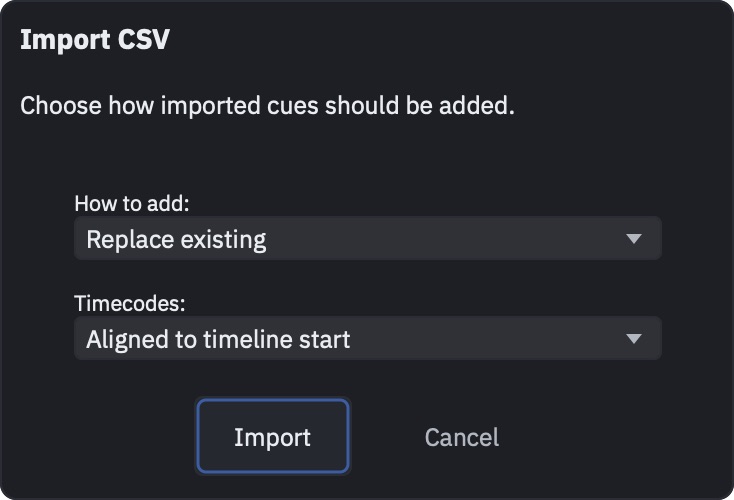
Import is refused in Live and Break, before the dialog opens — "Replace existing" against the timeline currently driving the mixer is not a mistake worth allowing.
Tip
A CSV exported by HotPunch re-imports into HotPunch, drop-frame included: the semicolon
in 01:00:00;02 carries the designation, and the frames are converted with it. Two
things do not survive the round trip: cue colours (rebuilt from the source) and the
M/E column (you choose the target in the dialog). Exporting a project with M/E 2 cues
writes a separate _me2.csv, which has to be imported separately. See
Handoff to post.
Your show exists. Next, get it onto paper for the crew: Cue sheets.