Rehearse
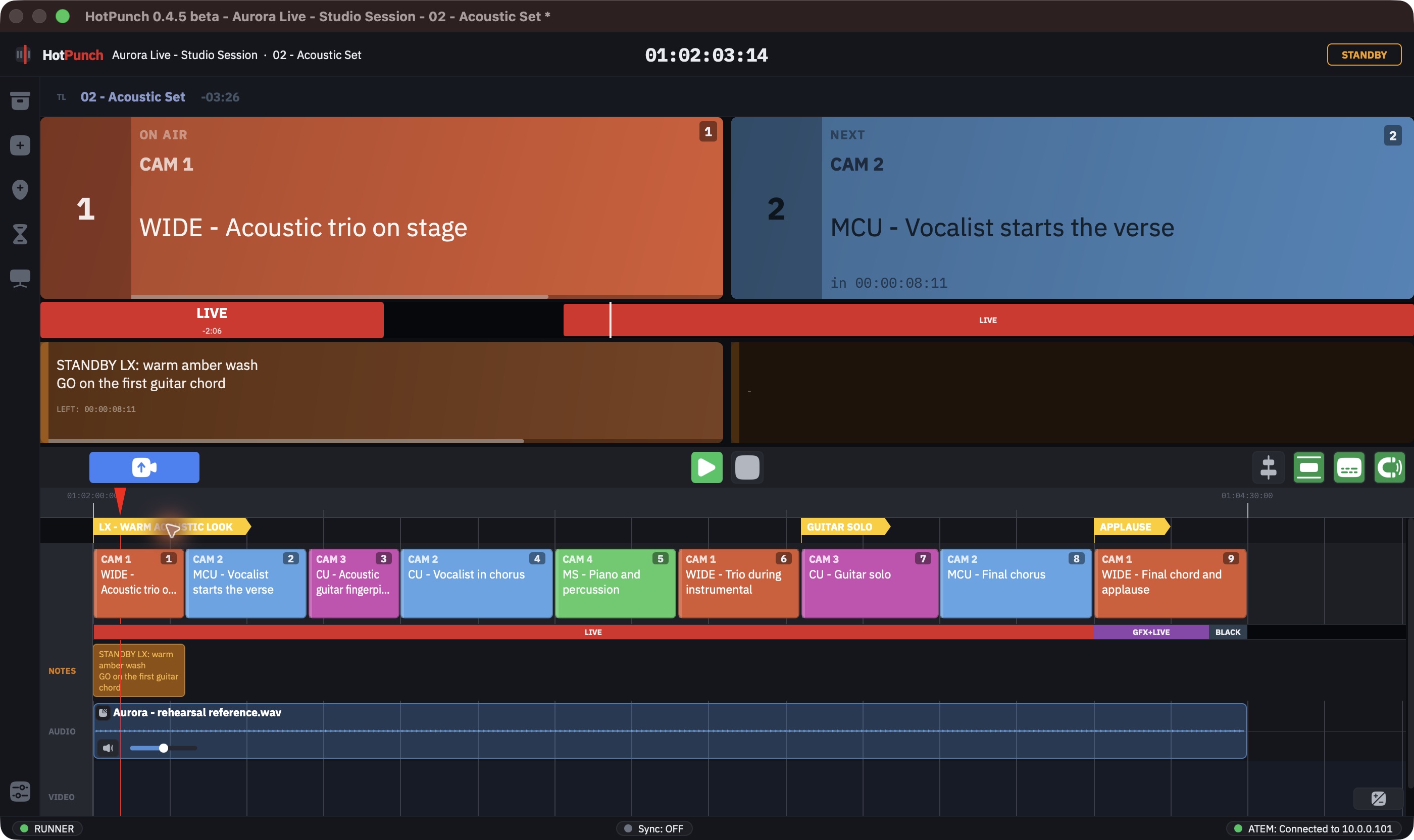
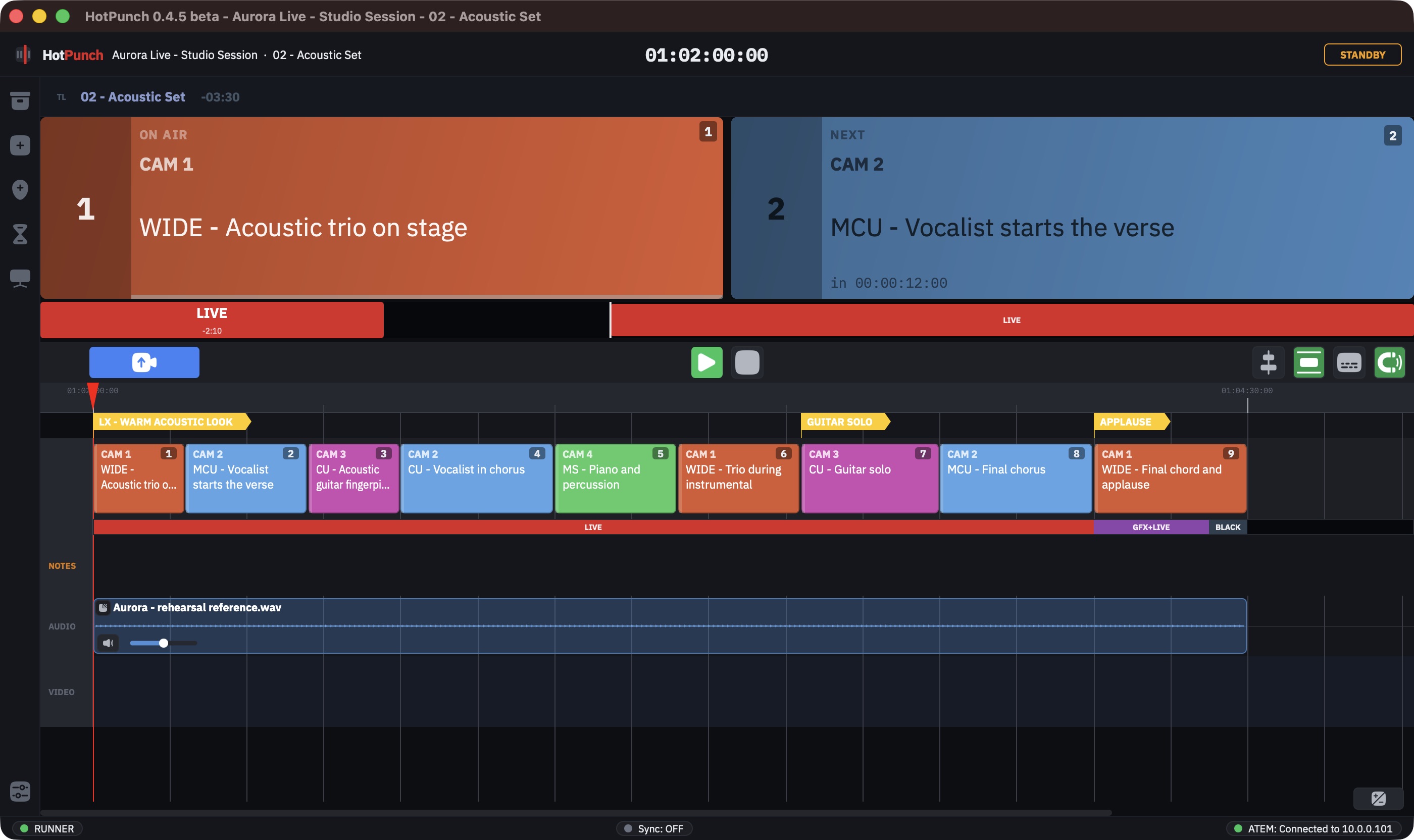
Standby is the state where the show runs for real and nothing reaches the mixer. The playhead moves, cues fire, transitions are computed, the crew's browsers update — and every switching command is written to the log instead of the wire.
It is the only honest test of a show you have not run before, and on a beta it is not optional. Run the whole thing in Standby at least once.
Getting to Standby
You do not choose Standby; it arrives. Connecting a mixer moves you from Offline to Standby automatically — see Connect a mixer. Coming down from a show, ending Live lands you back here too.
The state pill reads STANDBY in amber. Green is Live. If you are looking at green, you are on air.
Editing still works in Standby exactly as it did offline: this is the state to fix what the rehearsal finds.
Dry run is not a setting
There is no dry-run switch, no checkbox to arm and no checkbox to forget. Dry run follows the operational state, and nothing else:
- Offline and Standby — dry run on. Commands are logged, never sent.
- Live and Break — dry run off. Commands go to the mixer.
Every protocol engine implements it, so the guarantee does not depend on which switcher you picked. There is no configuration in which you rehearse and accidentally punch the real program, and none in which you go live and silently keep rehearsing.
Note
One exception exists and it is deliberate: a redundancy backup chasing a primary into Live keeps dry run on, because it is wired to the same mixer and would send the same commands twice. It stays muzzled until a failover promotes it. See Redundancy.
The log
The log is where the dry run becomes visible. Open it with Cmd+Shift+L, or
View > Log, or the Log tab in Settings.
Warning
Settings — and therefore the log tab — cannot be opened in Live or in Break.
Attempting it in Live raises Settings Blocked. The log is a rehearsal instrument. If
you want a record of what happened during the show, turn on file logging before you go
on air.
Every timestamped line that would have gone on the wire carries a [DRY-RUN] prefix and
names the protocol. Lines without the prefix are HotPunch narrating what it decided:
[20:41:02] [STANDBY] Preview mode active - commands logged, not sent to mixer
[20:41:07] CUE: Entered: CAM 3
[20:41:07] [DRY-RUN] ATEM: Preview = 3 on M/E 1
[20:41:07] [DRY-RUN] ATEM: Transition style = Mix on M/E 1
[20:41:07] [DRY-RUN] ATEM: Mix rate = 25 frames on M/E 1
[20:41:07] ATEM: Mix 25f -> AUTO
[20:41:07] [DRY-RUN] ATEM: AUTO on M/E 1
That is one cue. Read the pair of lines that matters — the source number and the transition — and skip the rest.
Three controls sit under the log pane:
- Save logs to file (on by default) writes a session log to the system log folder —
~/Library/Logs/HotPunchon macOS. Leave it on: it is the only record that survives the session, and it is what you will be asked for when something goes wrong on a beta. - Open Log Folder reveals that folder.
- Clear Log empties the on-screen buffer.
What to check, and how the log proves it
The input numbers are the mapped ones. The number in Program = 5 is the physical
mixer input, after input mapping has been applied — not
the HotPunch camera number. This is the single most valuable line in a rehearsal: play a cue
for each camera and confirm the number matches the physical input on the desk. A mapping
error found here is a mapping error not found at 20:55.
The transitions are the ones you asked for. If your mixer cannot do the transition on a cue, HotPunch substitutes a simpler one. Two places tell you, and neither is loud:
- In the cue editor, once a protocol is connected, the line beside the transition combo
turns amber and reads
-> MIX (protocol fallback)instead of the frame count. That works for every protocol, and it is the one to trust. - On ATEM and Ross only, the log spells it out at runtime:
ATEM: Pre-configured Mix (fallback from DVE) 12f for CAM 3. On the other engines the substitution happens without a word in the log.
The fallback rules are in Connect a mixer.
The timing is right. [CUE] Entered: lines appear as the playhead crosses each cue.
Watch them against your reference audio, not against the clock in your head.
The frame rate agrees. An amber badge under the master timecode reading
MIX 29.97 != PRJ 25 means the mixer and the project disagree about frame rate, and your
timecode digits are not what you think they are. Resolve it now — see
Settings.
The crew sees what you meant them to see. Web viewers publish in Standby exactly as
they do in Live, and their mode bar reads STANDBY, so operators can follow a rehearsal
from their own screens. Shot descriptions, notes and status bands are all live. See
Web tally.
The output display is configured. Open it now, on the screen it will actually use, and leave it up for the rehearsal. Setting it up is in Running the show.
Timecode chases. If the show is driven by incoming MTC or LTC, the lock has to be armed before anything follows it, and the rehearsal is when you find out it was not. See Timecode sync.
What Standby will not do for you
No ISO recording starts. Auto ISO recording is gated on dry run being off, so playing
the timeline in Standby logs [DRY-RUN] ATEM: Auto-rec start (suppressed in Standby) and
records nothing. You cannot rehearse a recording. See
ISO recording.
Nothing on the mixer moves. That is the point, but it means the rehearsal cannot tell you whether the mixer accepts the commands — only that HotPunch is emitting the right ones. On any protocol other than ATEM, that gap is real: see declared maturity. Budget time for a short supervised pass in Live, on a program feed nobody is watching, before the first real show.
Before you go live
Work down this list while you are still in Standby, because half of it is unreachable once you are not.
- [ ] The whole show has been played through once in Standby.
- [ ] Each camera's dry-run line names the correct physical input.
- [ ] No transition fell back to something simpler than you wanted.
- [ ] The frame rate badge is absent.
- [ ] The correct show is loaded, and the correct timeline is active.
- [ ] Timecode is locked and chasing, if the show is timecode-driven.
- [ ] The output display is open on the right screen.
- [ ] The crew's browsers are connected and showing the right view.
- [ ] Save logs to file is on.
- [ ] Reference audio and video have finished loading — GO LIVE stays disabled until they have.
- [ ] The ISO Review window is closed.
Then run the show.